
Table of Contents
ToggleHow to use Shield Security Plugin to remove malware from your WordPress website
Shield Security is a plugin for WordPress that provides a comprehensive range of security features to protect your website from hackers, malware, and other online threats. This plugin is a must-have for anyone who wants to keep their website safe and secure. This security plugin provides not only malware scanning but also website firewall(WAF), Brute Force Attacks Protection, DDoS Attack Mitigation,IP Allowlisting, Bad Bot Blocking and other security features. Both free and premium versions are offered. Now we have to learn how to scan malware in your website with the Shield Security plugin
Before scanning malware in your WordPress use Shield Security. you need to install it. let’s learn how to install the Shield Security plugin on your website:
First, Go to your WordPress dashboard and Follow the steps
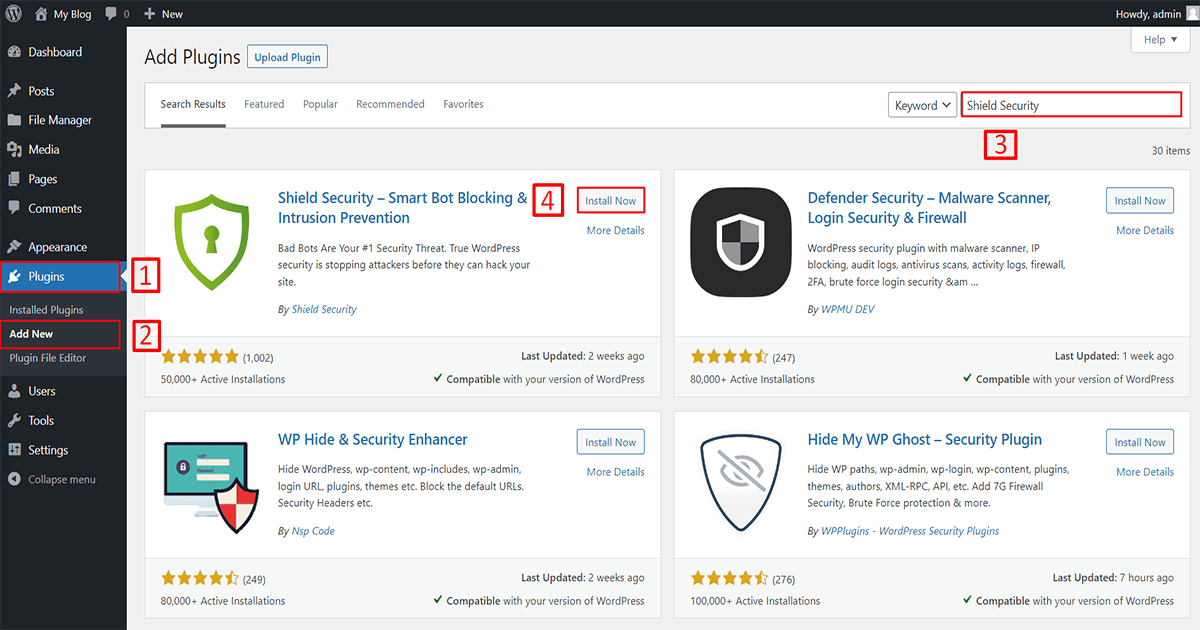
1. Go to Plugins
2. Click on Add New
3. Search for the “Shield Security” plugin,
4. Click on the “Install Now” button and install it.
Then the installation process takes some time so wait a few moments. After that click to activate the plugin. Now the installation process is complete and you can see the plugin below but the plugin not working because the plugin needs to be config. let’s learn how to configure it.
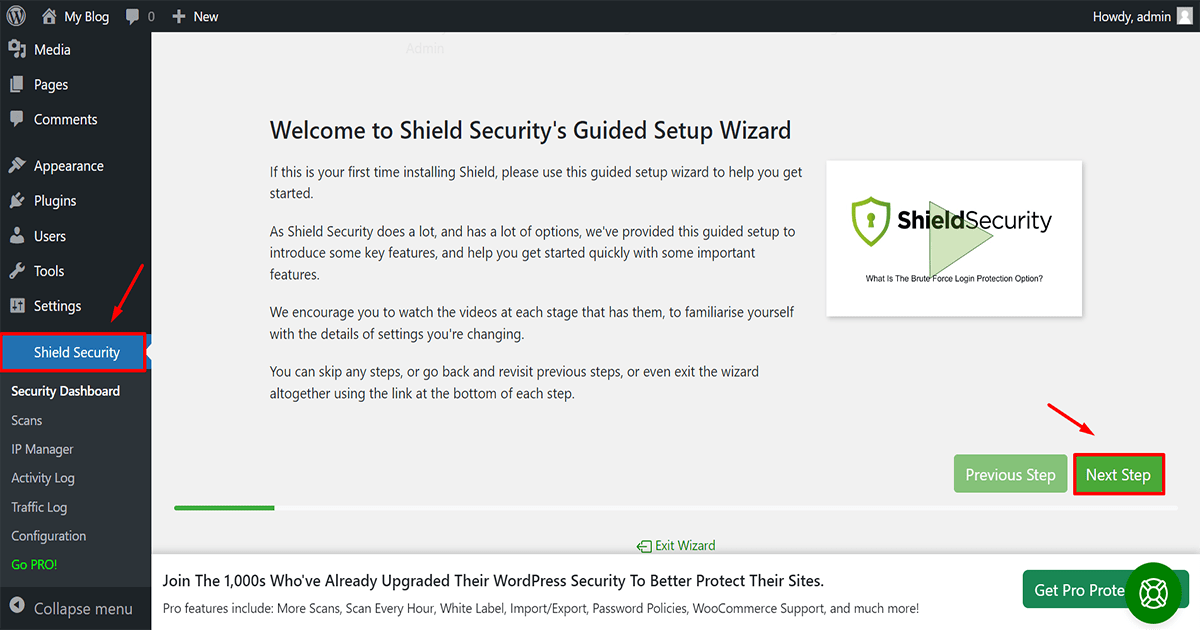
Go to your shield security and click the “next step” button.
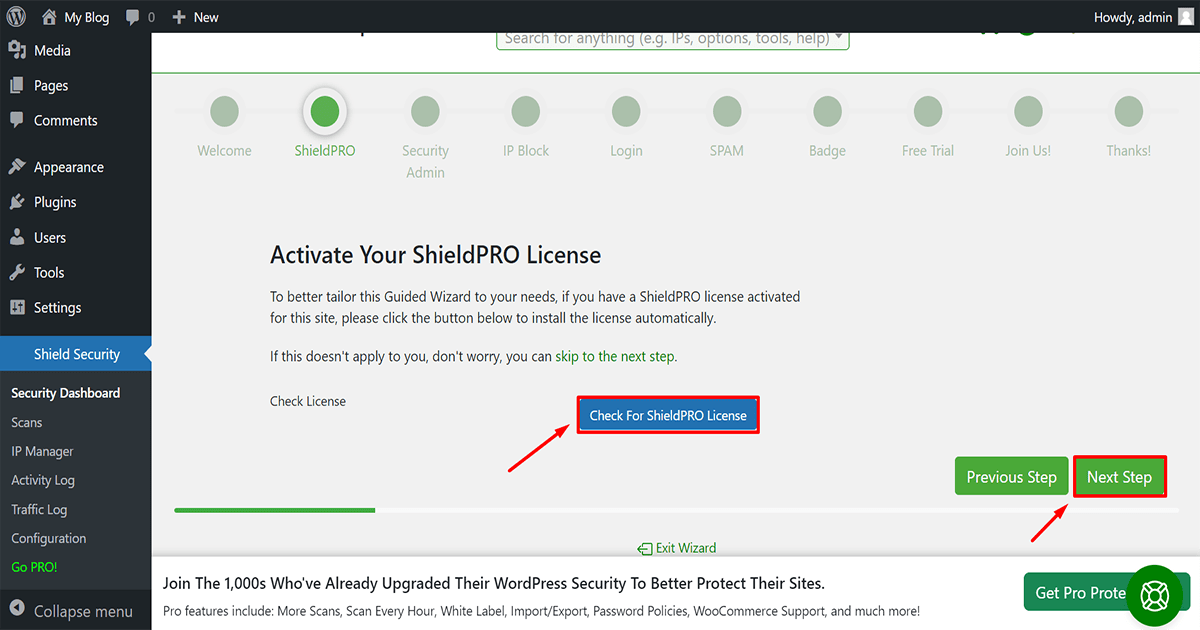
If you want to buy a premium license then click “Check for shieldPRO License” or if you are a free user then click the “Next Step” button.
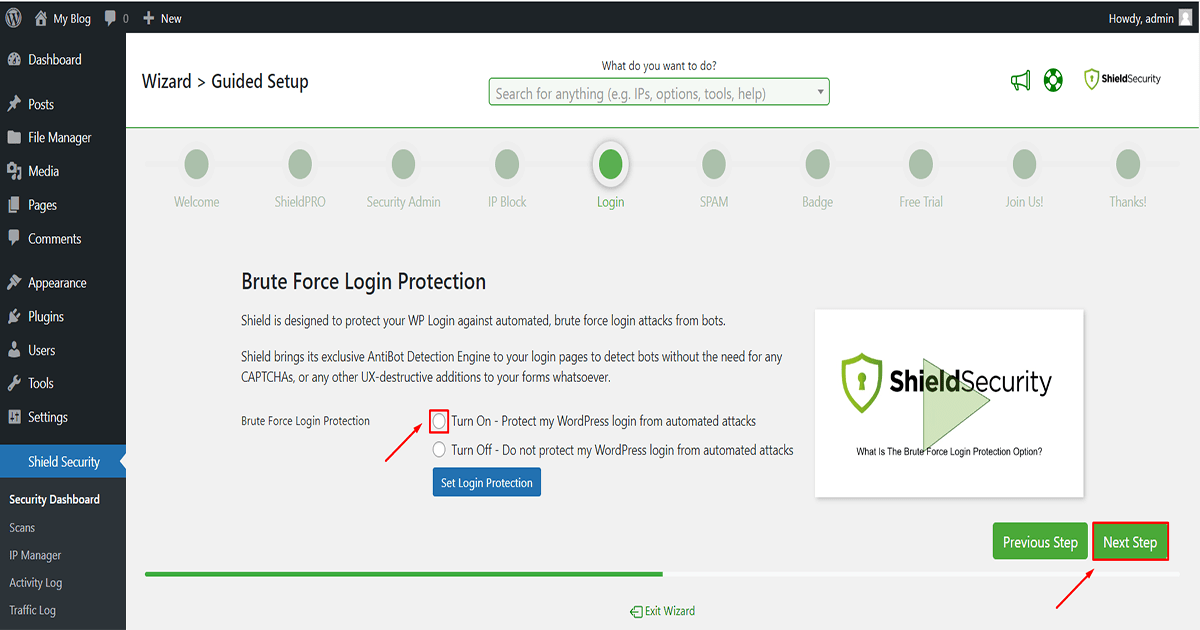
Brute Force Protection – shield security helps protect your website against brute force attacks by limiting the number of login attempts that can be made within a certain timeframe. This prevents hackers from guessing your login credentials and gaining access to your website. You should turn on it and click on the next step.
After 10 steps click on “Go To Shield Overview” and complete the configuration. Now the configuration is successful and it is working perfectly.
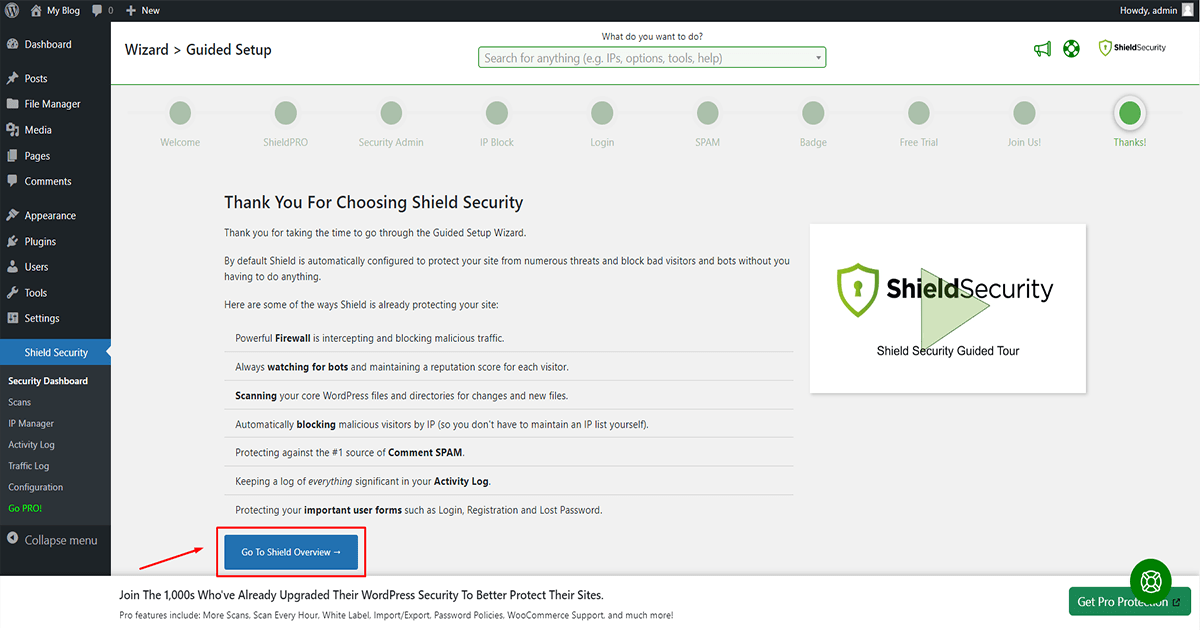
Now it’s time to scan for malware on your website.
First, Go to your WordPress dashboard and Follow the steps
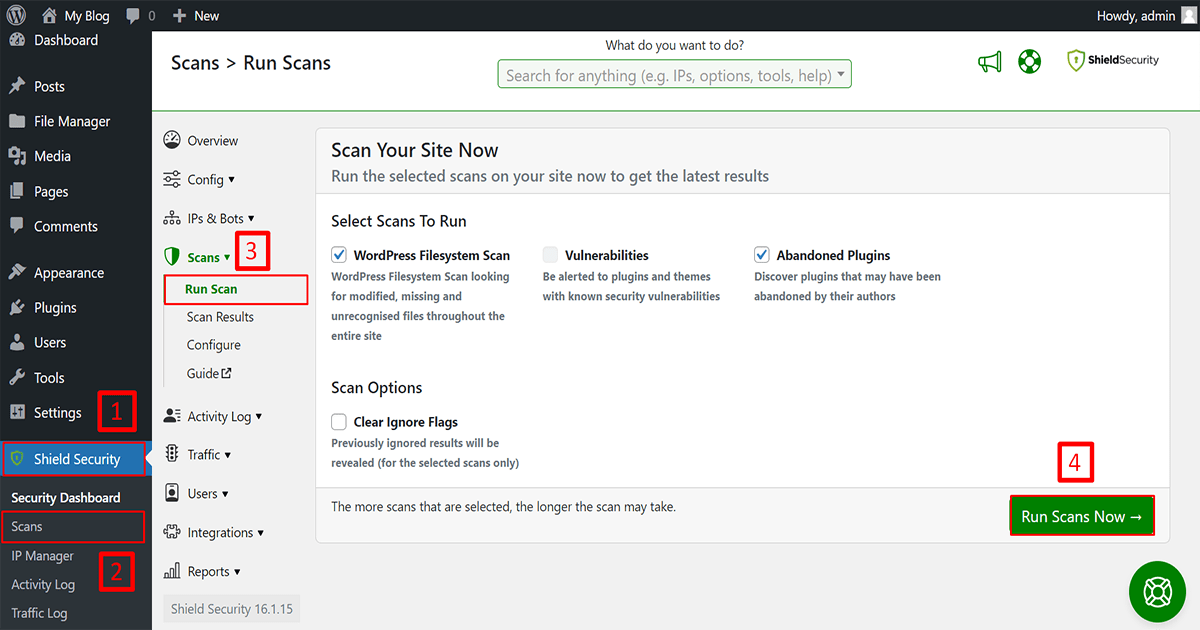
1. Go to shield security
2. Click on Scans
3. after that click on run scan
4. and press to the “run scans Now”
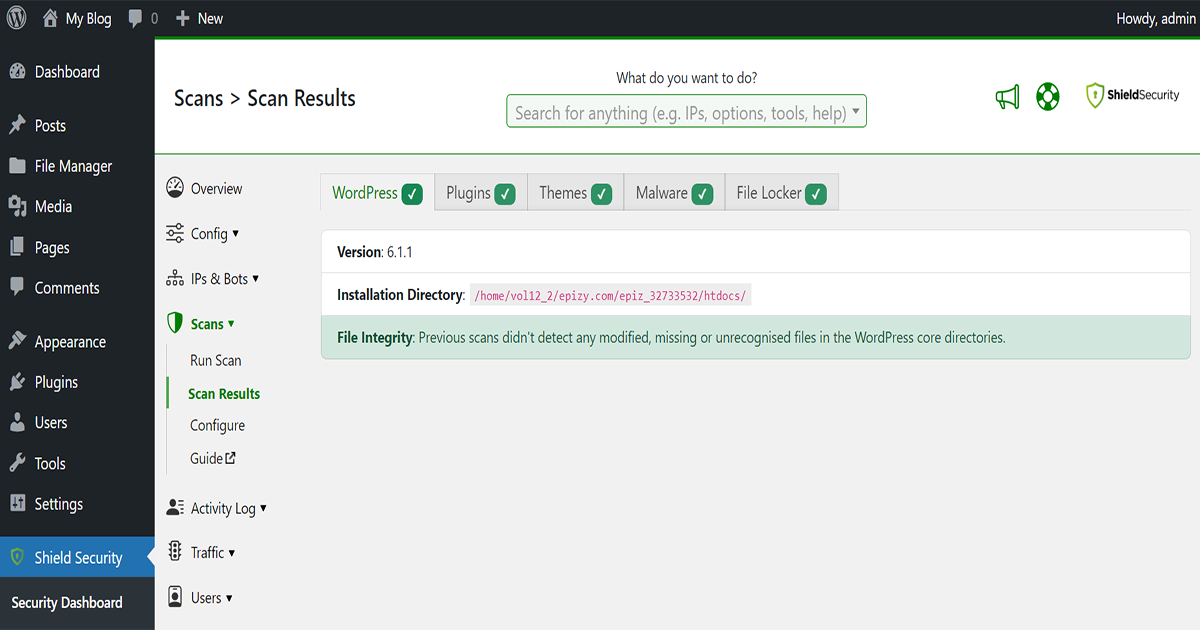
Now it’s time to wait for a while. After waiting you can see the result. This website has no malware so it looks clean.
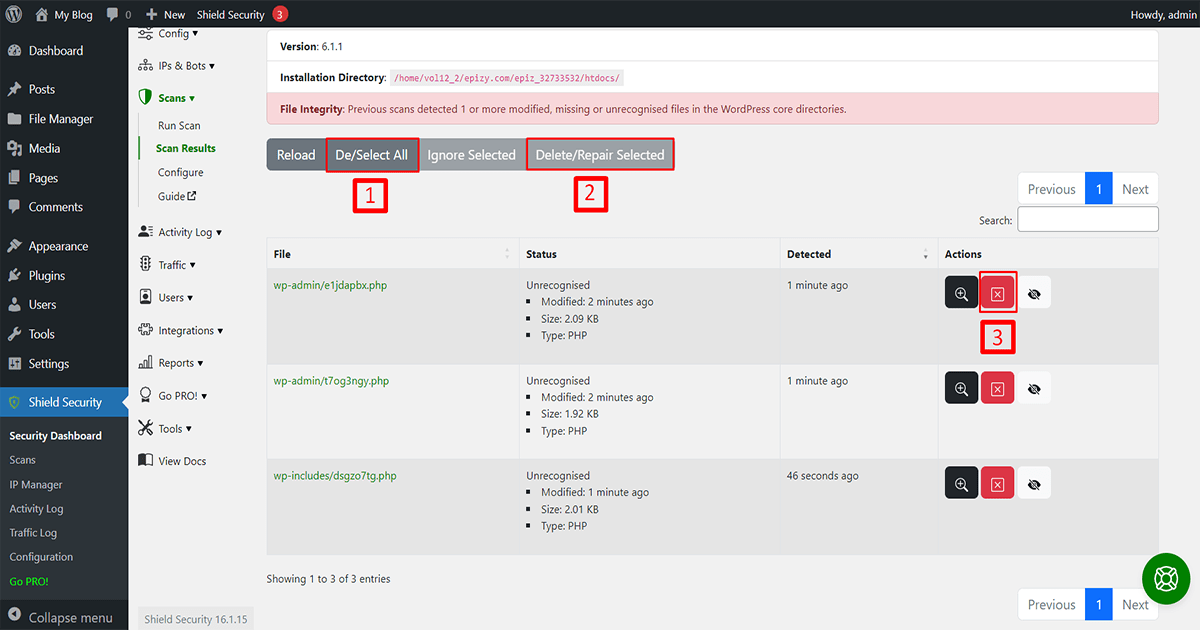
But if your website had malware then it would look like this. you will see below the Malware type, Malware location, and danger level all detailed
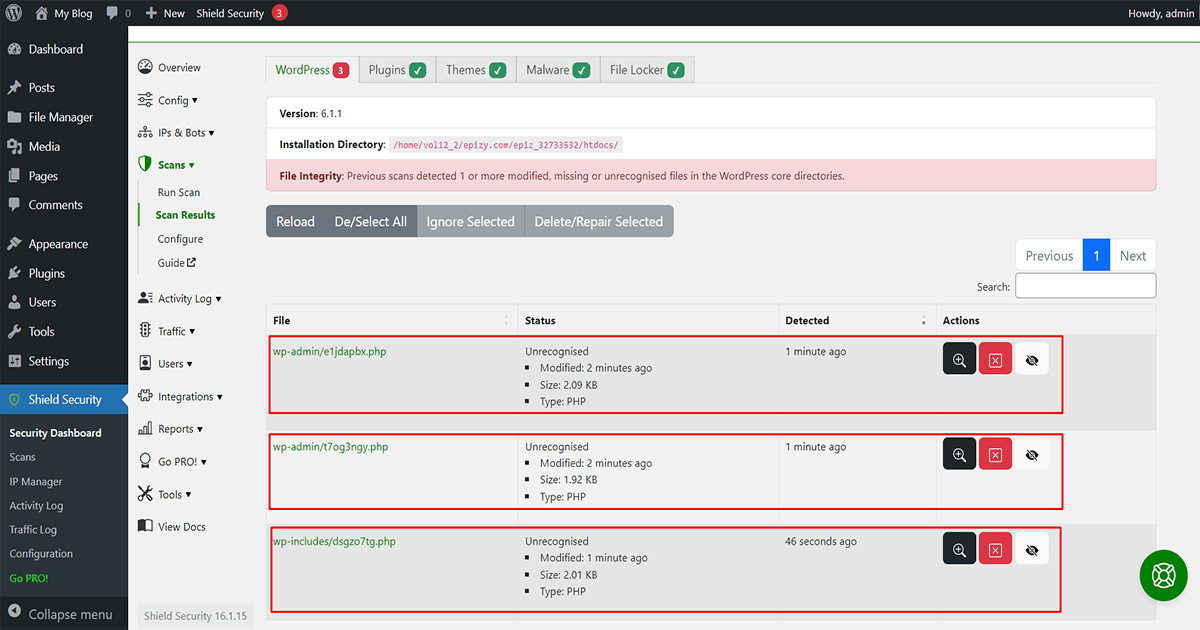
Now Removing this malware is very simple. This malware can be removed in two ways. If you want to remove all malware at once then follow click (1) then click (2). If you want to remove malware one by one follow the (3).
Warning: Simple malware that can be solved by deleting follow this process for these malware but if you find any malware modifying your main WordPress file or your theme file or any plugin file then get help for it from a professional before deleting it
Pro Tips: After removing the malware, you can further secure your website. How? let's see:
Use login Protection
Shield Security offers advanced login protection features such as two-factor authentication, brute force protection, and login limits to prevent unauthorized access to your website.
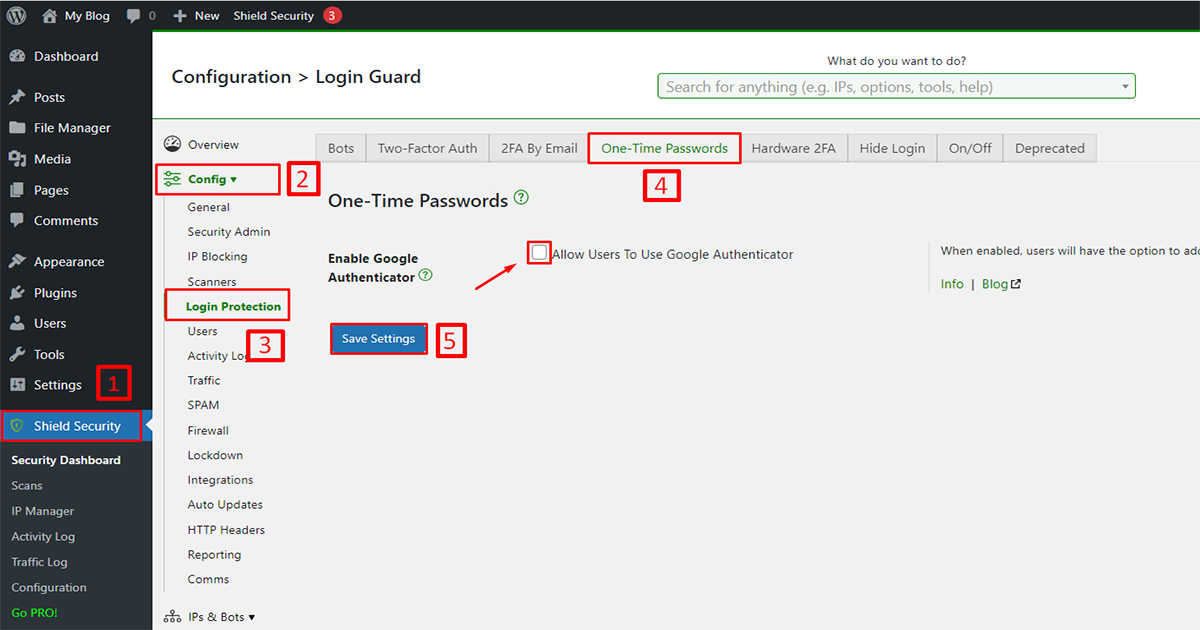
How to setup 2FA protection let’s learn the following steps:
1. Go to Shield Security
2. Click on “Config”
3. Click on the “Login Protection” button.
4. then click on the “One-Time Passwords” and tick the radio button (Allow Users to Google Authenticator)
5. and click on the “Save Setting” to save it.
Now your 2FA protection is successfully configured.
Admin URL Redirection:
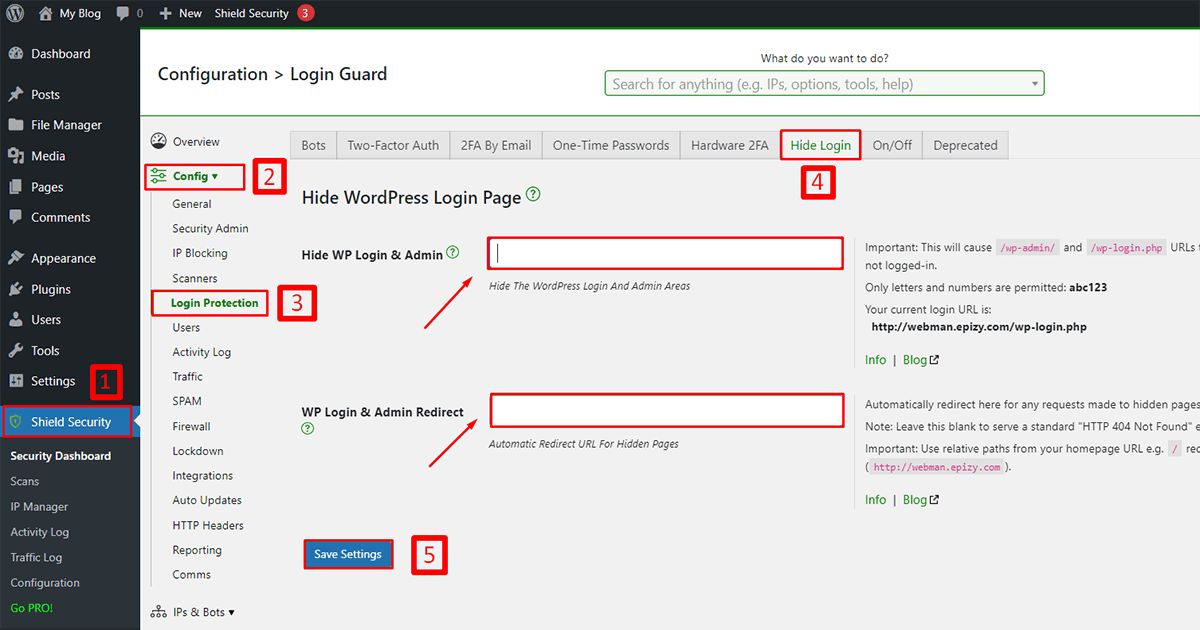
How to hide the WordPress login page let’s learn by the following steps:
1. Go to Shield Security
2. Click on “Config”
3. Click on the “Login Protection” button.
4. Then click on the “Hide Login”
now type your admin URL which you want to hide and type your redirect admin URL which you log in with.
5. and click on the “Save Setting” to save it.
Now your hide WordPress login system is successfully configured .
Use firewall Protection
The plugin includes a web application firewall (WAF) that helps protect your website against malicious traffic and attacks.
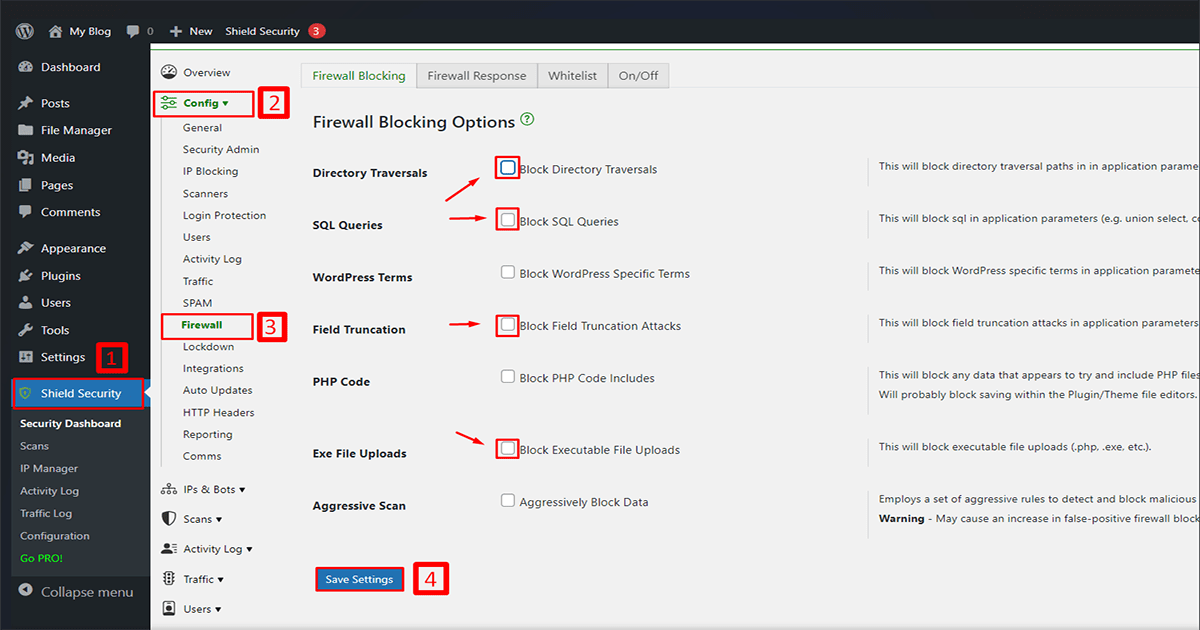
How to Enable Firewall to let’s learn by the following steps:
1. Go to Shield Security
2. Click on “Config”
3. Click on the “Firewall” and tick the radio button as your need.
5. and click on the “Save Setting” to save it.
Now your Firewall protection is successfully configured.
Bruteforce:
How to setup brute force protection let’s learn by the following steps:
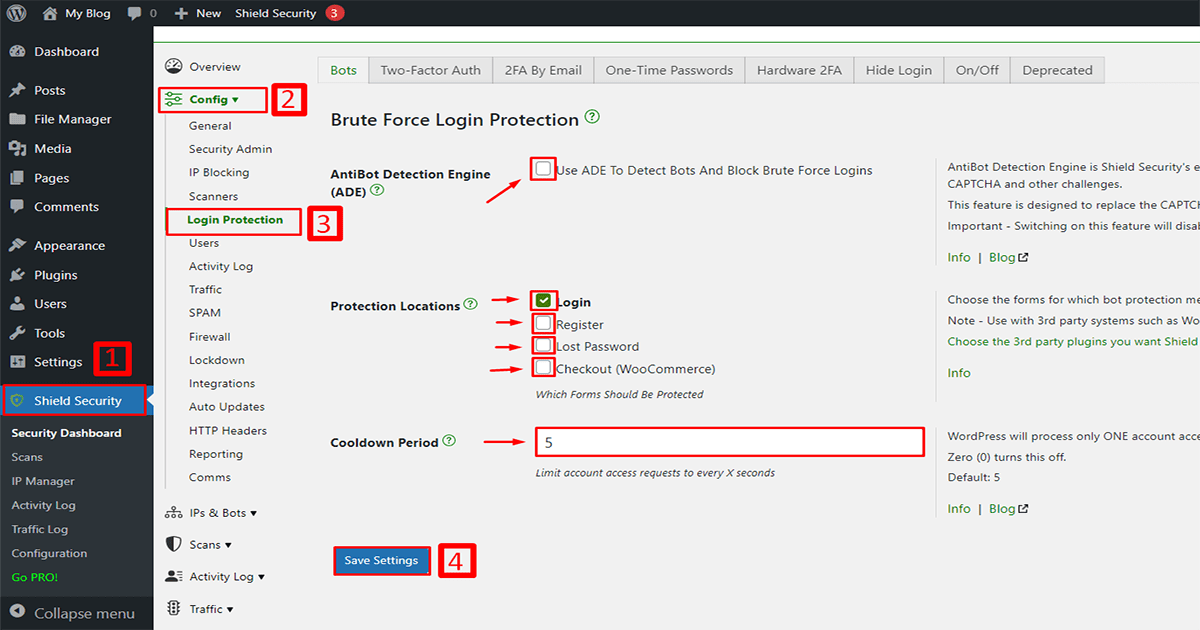
1. Go to Shield Security
2. Click on Config
3. then click on the “Login Protection” button and tick the radio button as your wish.
4. and click on the “Save Setting” to save it.
Now your brute force protection is successfully configured.
In addition, Shield Security is an excellent plugin for WordPress that provides a wide range of security features to protect your website from online threats. Whether you’re a blogger, an online store owner, or a business website owner, this plugin is a must-have for ensuring the security and integrity of your website.

Using Shield Security to Remove Malware from Your WordPress Site
How to use Shield Security Plugin to remove malware from your WordPress website
Shield Security is a plugin for WordPress that provides a comprehensive range of security features to protect your website from hackers, malware, and other online threats. This plugin is a must-have for anyone who wants to keep their website safe and secure. This security plugin provides not only malware scanning but also website firewall(WAF), Brute Force Attacks Protection, DDoS Attack Mitigation,IP Allowlisting, Bad Bot Blocking and other security features. Both free and premium versions are offered. Now we have to learn how to scan malware in your website with the Shield Security plugin
Before scanning malware in your WordPress use Shield Security. you need to install it. let’s learn how to install the Shield Security plugin on your website:
First, Go to your WordPress dashboard and Follow the steps
The remove malware shield security wordpress is available exclusively at Wp PiP.

1. Go to Plugins
2. Click on Add New
3. Search for the “Shield Security” plugin,
4. Click on the “Install Now” button and install it.
Then the installation process takes some time so wait a few moments. After that click to activate the plugin. Now the installation process is complete and you can see the plugin below but the plugin not working because the plugin needs to be config. let’s learn how to configure it.
Go to your shield security and click the “next step” button.

If you want to buy a premium license then click “Check for shieldPRO License” or if you are a free user then click the “Next Step” button.

Brute Force Protection – shield security helps protect your website against brute force attacks by limiting the number of login attempts that can be made within a certain timeframe. This prevents hackers from guessing your login credentials and gaining access to your website. You should turn on it and click on the next step.

After 10 steps click on “Go To Shield Overview” and complete the configuration. Now the configuration is successful and it is working perfectly.

Now it’s time to scan for malware on your website.
First, Go to your WordPress dashboard and Follow the steps

1. Go to shield security
2. Click on Scans
3. after that click on run scan
4. and press to the “run scans Now”
Now it’s time to wait for a while. After waiting you can see the result. This website has no malware so it looks clean.

But if your website had malware then it would look like this. you will see below the Malware type, Malware location, and danger level all detailed

Now Removing this malware is very simple. This malware can be removed in two ways. If you want to remove all malware at once then follow click (1) then click (2). If you want to remove malware one by one follow the (3).

Warning: Simple malware that can be solved by deleting follow this process for these malware but if you find any malware modifying your main WordPress file or your theme file or any plugin file then get help for it from a professional before deleting it
Pro Tips: After removing the malware, you can further secure your website. How? let’s see:
Use login Protection
Shield Security offers advanced login protection features such as two-factor authentication, brute force protection, and login limits to prevent unauthorized access to your website.
How to setup 2FA protection let’s learn the following steps:

1. Go to Shield Security
2. Click on “Config”
3. Click on the “Login Protection” button.
4. then click on the “One-Time Passwords” and tick the radio button (Allow Users to Google Authenticator)
5. and click on the “Save Setting” to save it.
Now your 2FA protection is successfully configured.
Admin URL Redirection:
How to hide the WordPress login page let’s learn by the following steps:

1. Go to Shield Security
2. Click on “Config”
3. Click on the “Login Protection” button.
4. Then click on the “Hide Login”
now type your admin URL which you want to hide and type your redirect admin URL which you log in with.
5. and click on the “Save Setting” to save it.
Now your hide WordPress login system is successfully configured .
Use firewall Protection
The plugin includes a web application firewall (WAF) that helps protect your website against malicious traffic and attacks.
How to Enable Firewall to let’s learn by the following steps:

1. Go to Shield Security
2. Click on “Config”
3. Click on the “Firewall” and tick the radio button as your need.
5. and click on the “Save Setting” to save it.
Now your Firewall protection is successfully configured.
Bruteforce:
How to setup brute force protection let’s learn by the following steps:

1. Go to Shield Security
2. Click on Config
3. then click on the “Login Protection” button and tick the radio button as your wish.
4. and click on the “Save Setting” to save it.
Now your brute force protection is successfully configured.
In addition, Shield Security is an excellent plugin for WordPress that provides a wide range of security features to protect your website from online threats. Whether you’re a blogger, an online store owner, or a business website owner, this plugin is a must-have for ensuring the security and integrity of your website.
Shield Security stands out among WordPress plugins because it’s incredibly user-friendly and effective in tackling potential threats. One of the primary features that makes it remarkable is its ability to effortlessly integrate into your WordPress site, offering optimal security without slowing down your website’s performance. The Shield Security plugin acts as a vigilant guard, continuously monitoring for signs of malware and other vulnerabilities that may compromise your site’s integrity. By leveraging its robust capabilities, you can remove malware with Shield Security on your WordPress site quickly and efficiently.
Utilizing the Shield Security plugin for eliminating malware is a straightforward process. After installing the plugin, you’ll be guided through an intuitive setup process where you can customize security settings based on the level of protection you need. The plugin’s automatic scanning feature makes it easy for website owners to maintain top-tier security without needing extensive technical knowledge. If a threat is detected, Shield Security provides clear instructions and tools to remove malware, ensuring your WordPress site remains secure.
Besides malware detection and removal, Shield Security offers features like login protection and firewall settings that further safeguard your site. These additional features ensure a comprehensive defense mechanism is in place, significantly reducing the risk of future attacks. Regular updates to the plugin also mean that it adapts to new threats as they arise, keeping your security measures current. The seamless interface allows real-time updates and alerts, so you remain informed about your site’s security status at all times.
One of the crucial benefits of using Shield Security is its multifaceted approach to protection. It employs a blend of proactive and reactive measures to keep your WordPress environment secure. This includes setting access controls, monitoring file changes, and performing blacklist checks. By implementing these measures, Shield Security serves as a comprehensive solution to remove malware from your WordPress website and maintain its security over time.
Integrating Shield Security not only helps to remove malware shield security WordPress issues but also offers peace of mind that your digital presence is secure. Its reputation for reliability makes it a preferred choice among developers and site owners who prioritize security without compromising site speed or functionality. Moreover, its support team is known for being both responsive and knowledgeable, offering further assurance that help is available whenever needed.
Incorporating Shield Security into your WordPress maintenance routine ensures a safer, more reliable website experience. It’s not just about addressing current vulnerabilities but also about implementing ongoing strategies to prevent future incidents. With regular scans and the ability to promptly remove malware, Shield Security makes it easier than ever to manage security risks on your WordPress site. Adopting this plugin as part of your security toolkit is a smart, proactive step for any site owner.
Ultimately, managing a WordPress site comes with inherent security challenges, but Shield Security empowers you to address them confidently. By choosing to utilize this plugin, you are investing in a robust, adaptable solution designed to protect your site effectively. From removing threats like malware to fortifying your
