Table of Contents
ToggleWordPress security | How to protect your WordPress website from Malware
WordPress is a commonly used content management system (CMS) for creating and maintaining websites. This, also indicates that WordPress websites are a popular target for hackers and online criminals. They injects Malware, Spyware, Adware, ransomware, Virus, Trojans to WordPress website when there are no security prevents them.
This post will offer advice and recommended procedures for enhancing the security of your WordPress website. With WordPress security plugins and manual actions.
Use strong passwords to prevent brute-force by Hackers:
Weak passwords are one of the most popular ways for hackers to access a website. And upload malware files to get full access and play with it as they want.
Use strong passwords that are at least 12 characters long, contain a combination of capital and lowercase letters, digits, and symbols, and are at least 12 characters long.
You can use free WordPress security plugins to force strong passwords. Wpscan, WordFence security plugin, sucuri, iThemes security plugins forces user to create strong password for their accounts.
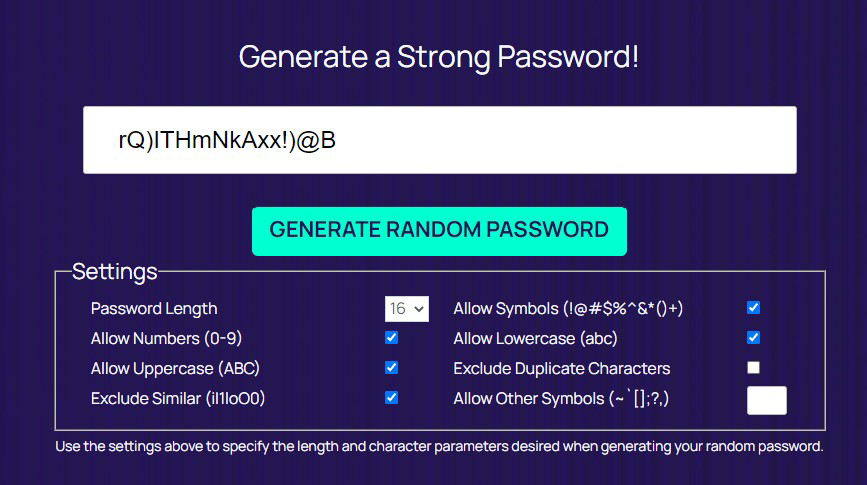
You can use strong password generator tool. Like, Delinea password generator tool.

Keep your WordPress software and plugins up to date, to prevent Malware attack and avoid vulnerabilities:
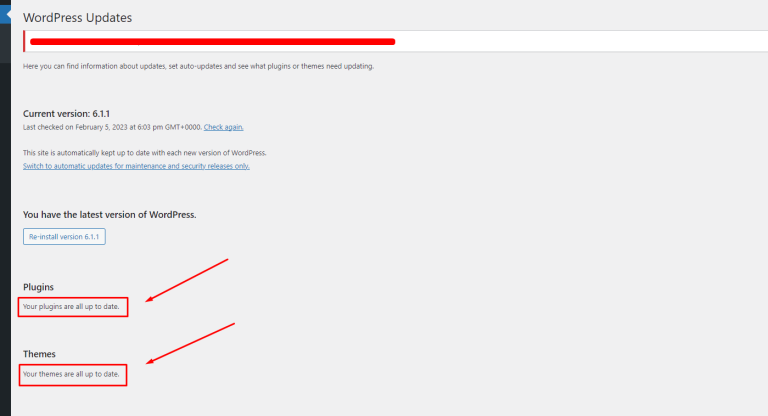
Regularly updating your WordPress software can prevent malware attacks and avoid vulnerabilities. As soon as updates are available, make sure you take a backup with backup plugins before updating them.
Backdated plugin or themes can create vulnerabilities on your WordPress website.

Disable file editing by changing file permission to Avoid vulnerabilities:
By default, WordPress allows users to edit theme and plugin files from within the dashboard. Disabling this feature can prevent hackers from making changes to your site through vulnerabilities in these files.
To disable file editing:
1. Go to your Hosting server and login to your Cpanel, or use ftp to access files.
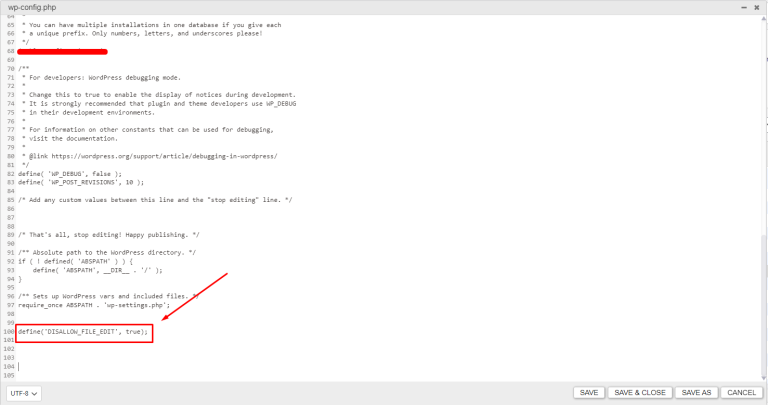
2. Find wp-config.php file on domain root folder. Where you can see wp-admin, wp-content, wp-includes folder available)
3. Download and open the wp-config.php (Make sure to have a backup before editing).
4. Insert the code: define (‘DISALLOW_FILE-EDIT’ , true );
5. Save the file and upload to your hosting server.

Back up your website regularly by backup plugins or manual process:
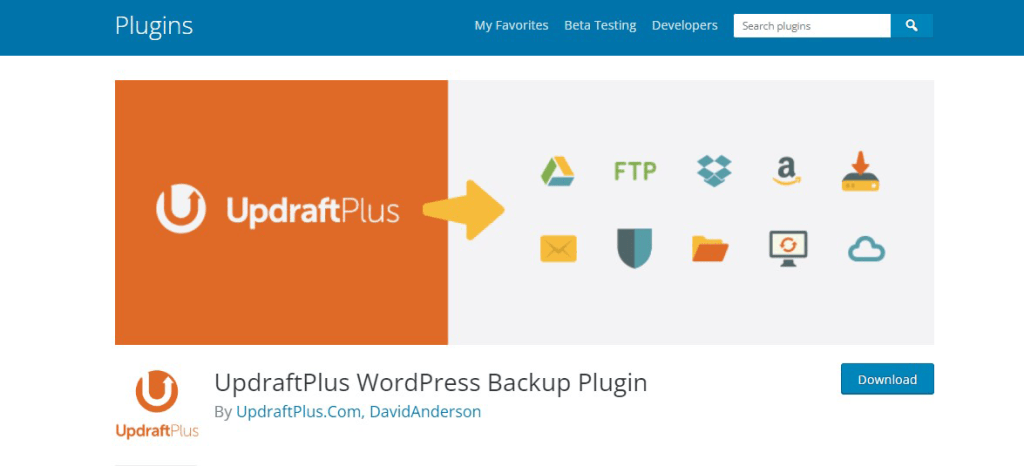
In the case of a security breach or other problem, regular backups can help you swiftly restore your website.you can use UpdraftPlus or all-in-one migration WordPress plugin to create an automated backup of your site.

Use HTTPS on WordPress settings and force to HTTPS:
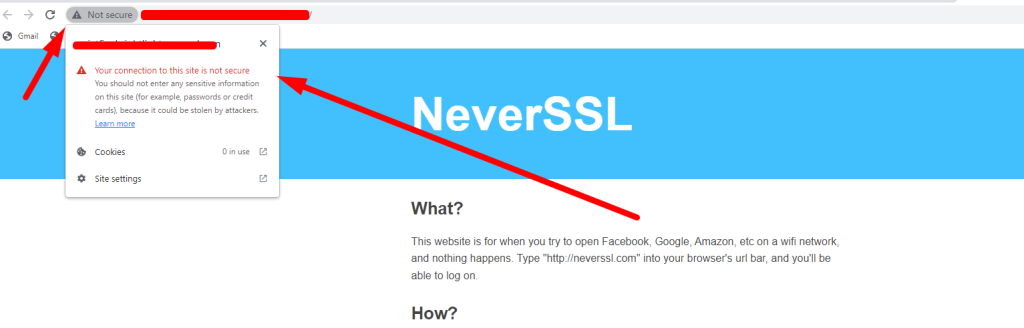
One of the following techniques can be used to compel WordPress to redirect from HTTP to HTTPS:
- Use a plugin: To quickly configure the redirect, you may use a plugin like “Really Simple SSL” or “WP Force SSL.” The plugin just has to be installed and turned on to automatically switch all HTTP traffic to HTTPS.
2. .htaccess file editing: In the root directory of your WordPress installation, in the. htaccess file, you may add the following code:
<IfModule mod_rewrite.c>
RewriteEngine On
RewriteCond %{HTTPS} off
RewriteRule ^(.*)$ https://%{HTTP_HOST}%{REQUEST_URI} [L,R=301]
</IfModule>
Whether the request is not already being served over HTTPS, this code checks to see if it is and, if not, redirects it to the same URL via HTTPS. This is a permanent redirect thanks to the “R=301” mark.

Note: It is recommended that a backup your “.htaccess” file before making any changes. Additionally, If editing files on your server is not something you frequently do, it is preferable to get expert assistance or support from your web hosting company.to get expert help please Click here
Monitor your website for suspicious activity by Using security plugins:
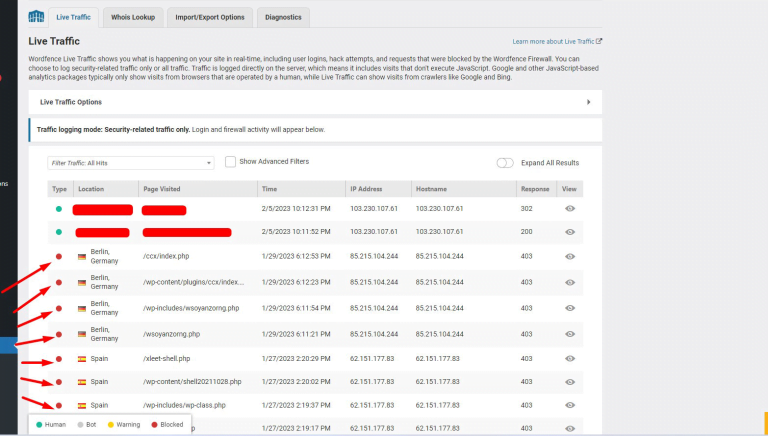
Regularly monitoring your website for unusual activity, such as a sudden increase in traffic or new admin users, can help you quickly identify and address potential security threats. Additionally, WordFence plugin allows you to keep a monitor on suspicious activity or other security plugins like, WpScan, Sucuri, iThemes security etc.
To monitor your website using WordFence plugin:
1. Go to your WordPress dashboard.
2. Click on “Tools” under WordFence on left side panel of your dashboard. ( If you haven’t installed WordFence plugin yet, please read this article.
There you can see a list of website visitors. You can block them or unblock them from here if you found anything suspicious activity from a visitor.

Do not download free nulled plugin and be careful when downloading and installing plugins:
Never download an untrusted pluginfrom an unauthorized source. Installing and downloading plugins, especially free ones, should be done with caution. Always download plugins from reputable sources, and be cautious of plugins with low ratings or few downloads.
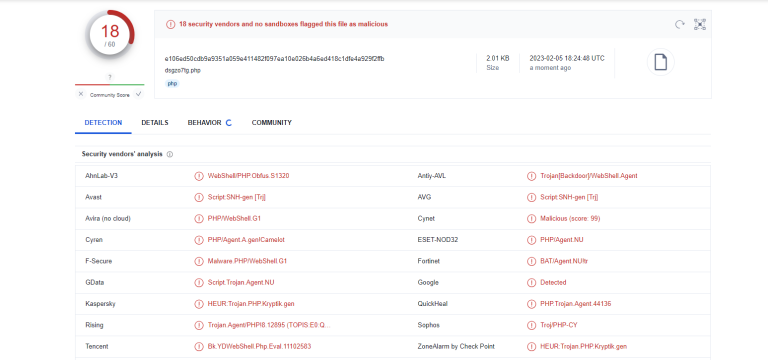
Also, if you need any plugin that can only get from untrusted source. You can download them and scan with Virustotal before uploading or installing the plugin.

In conclusion, maintaining the security of your WordPress website is essential for protecting both it and its users. You may lower the chance of vulnerabilities and make sure that your website is safe and secure by simply following these guidelines and best practices.
.elementor-column .elementor-spacer-inner{height:var(–spacer-size)}.e-con{–container-widget-width:100%}.e-con-inner>.elementor-widget-spacer,.e-con>.elementor-widget-spacer{width:var(–container-widget-width,var(–spacer-size));–align-self:var(–container-widget-align-self,initial);–flex-shrink:0}.e-con-inner>.elementor-widget-spacer>.elementor-widget-container,.e-con-inner>.elementor-widget-spacer>.elementor-widget-container>.elementor-spacer,.e-con>.elementor-widget-spacer>.elementor-widget-container,.e-con>.elementor-widget-spacer>.elementor-widget-container>.elementor-spacer{height:100%}.e-con-inner>.elementor-widget-spacer>.elementor-widget-container>.elementor-spacer>.elementor-spacer-inner,.e-con>.elementor-widget-spacer>.elementor-widget-container>.elementor-spacer>.elementor-spacer-inner{height:var(–container-widget-height,var(–spacer-size))}
WordPress security | How to protect your WordPress website from Malware
WordPress is a commonly used content management system (CMS) for creating and maintaining websites. This, also indicates that WordPress websites are a popular target for hackers and online criminals. They injects Malware, Spyware, Adware, ransomware, Virus, Trojans to WordPress website when there are no security prevents them. This post will offer advice and recommended procedures for enhancing the security of your WordPress website. With WordPress security plugins and manual actions.Use strong passwords to prevent brute-force by Hackers:
Weak passwords are one of the most popular ways for hackers to access a website. And upload malware files to get full access and play with it as they want. Use strong passwords that are at least 12 characters long, contain a combination of capital and lowercase letters, digits, and symbols, and are at least 12 characters long.You can use free WordPress security plugins to force strong passwords. Wpscan, WordFence security plugin, sucuri, iThemes security plugins forces user to create strong password for their accounts.You can use strong password generator tool. Like, Delinea password generator tool.
Keep your WordPress software and plugins up to date, to prevent Malware attack and avoid vulnerabilities:
Regularly updating your WordPress software can prevent malware attacks and avoid vulnerabilities. As soon as updates are available, make sure you take a backup with backup plugins before updating them. Backdated plugin or themes can create vulnerabilities on your WordPress website.
Disable file editing by changing file permission to Avoid vulnerabilities:
By default, WordPress allows users to edit theme and plugin files from within the dashboard. Disabling this feature can prevent hackers from making changes to your site through vulnerabilities in these files. To disable file editing:1. Go to your Hosting server and login to your Cpanel, or use ftp to access files. 2. Find wp-config.php file on domain root folder. Where you can see wp-admin, wp-content, wp-includes folder available) 3. Download and open the wp-config.php (Make sure to have a backup before editing). 4. Insert the code: define (‘DISALLOW_FILE-EDIT’ , true );
5. Save the file and upload to your hosting server.
Back up your website regularly by backup plugins or manual process:
In the case of a security breach or other problem, regular backups can help you swiftly restore your website.you can use UpdraftPlus or all-in-one migration WordPress plugin to create an automated backup of your site.
Use HTTPS on WordPress settings and force to HTTPS:
One of the following techniques can be used to compel WordPress to redirect from HTTP to HTTPS:- Use a plugin: To quickly configure the redirect, you may use a plugin like “Really Simple SSL” or “WP Force SSL.” The plugin just has to be installed and turned on to automatically switch all HTTP traffic to HTTPS.
<IfModule mod_rewrite.c>RewriteEngine OnRewriteCond %{HTTPS} offRewriteRule ^(.*)$ https://%{HTTP_HOST}%{REQUEST_URI} [L,R=301]
</IfModule>
Whether the request is not already being served over HTTPS, this code checks to see if it is and, if not, redirects it to the same URL via HTTPS. This is a permanent redirect thanks to the “R=301” mark.
Monitor your website for suspicious activity by Using security plugins:
Regularly monitoring your website for unusual activity, such as a sudden increase in traffic or new admin users, can help you quickly identify and address potential security threats. Additionally, WordFence plugin allows you to keep a monitor on suspicious activity or other security plugins like, WpScan, Sucuri, iThemes security etc.To monitor your website using WordFence plugin:1. Go to your WordPress dashboard.2. Click on “Tools” under WordFence on left side panel of your dashboard. ( If you haven’t installed WordFence plugin yet, please read this article.There you can see a list of website visitors. You can block them or unblock them from here if you found anything suspicious activity from a visitor.
Do not download free nulled plugin and be careful when downloading and installing plugins:
Never download an untrusted pluginfrom an unauthorized source. Installing and downloading plugins, especially free ones, should be done with caution. Always download plugins from reputable sources, and be cautious of plugins with low ratings or few downloads.Also, if you need any plugin that can only get from untrusted source. You can download them and scan with Virustotal before uploading or installing the plugin.
With the increasing reliance on WordPress for website creation, understanding the nuances of WordPress security is crucial for safeguarding your digital space. Cybercriminals are continually evolving their methods, which means your security measures need to advance in tandem. A significant aspect of securing your WordPress site involves regular updates. WordPress frequently releases updates addressing vulnerabilities and improving overall security. By keeping your WordPress core, themes, and plugins updated, you minimize the risk of potential entry points for malware.
Another essential component of WordPress security is the use of strong, unique passwords for all user accounts. Passwords are often the first line of defense against unauthorized access. Implementing a password manager can help generate and store complex passwords. Additionally, enabling two-factor authentication for extra protection means that even if your password is compromised, attackers will find it difficult to gain access.
Besides maintaining up-to-date software and using strong passwords, consider restricting login attempts to thwart brute force attacks. Many security plugins offer this feature, which helps limit the number of login attempts from a specific IP address. Moreover, you can hide your WordPress login page by customizing its URL, making it less predictable for hackers trying to access your site.
Regular backups form an integral part of a robust WordPress security strategy. In the event of a successful attack, having a recent backup can save time and minimize damage. Automatic daily backups stored remotely ensure that you can quickly restore your website to its former state without losing critical data. It’s advisable to use more than one backup method to guarantee redundancy.
Most importantly, integrating security plugins can alleviate some of the burdens of manual oversight. Many plugins provide features such as malware scanning, firewall protection, and active monitoring. They can identify and mark out suspicious activity, giving you the chance to react before a situation escalates and your site becomes compromised.
Security doesn’t stop at digital interventions. Educating all users with access to your WordPress site about best practices is equally important. Offering training sessions on recognizing phishing attempts and being cautious with email attachments can reduce the chances of human error leading to a breach. The human factor is often a weak link in cybersecurity, and awareness is key.
If you’re managing user-generated content, there’s a potential risk that needs addressing. Configuring user permissions correctly ensures that users have access only to what is necessary for their role. This principle of least privilege minimizes the opportunity for internal threats and accidental mistakes. Monitoring user activity can also provide insight into potential insider threats or compromised accounts.
By employing a proactive approach to WordPress security, you can greatly reduce the likelihood of your website falling victim to malware and cyberattacks. A well-secured site not only protects your data but also fosters trust among your users and clients. In today’s digital landscape, where online interactions are prevalent, maintaining robust WordPress security is not just a matter of preference but a necessity.