
Table of Contents
ToggleComplete guide on how to remove malware from hacked WordPress website | Best practices
There’s no need to fear; the majority of hacked WordPress websites can be recovered. Without carefully considering the problem, an emotional response might do more harm than good. In this article, we’ll discuss about how to remove malware with best possible ways to get rid of it.
1. Check if your website infected with malware or not
There are some well-known, free online scanners to scan easily, simple to use. For example, VirusTotal, Securi, SiteLock, SiteGuarding, MalCare, Astra Security, Quttera, etc.
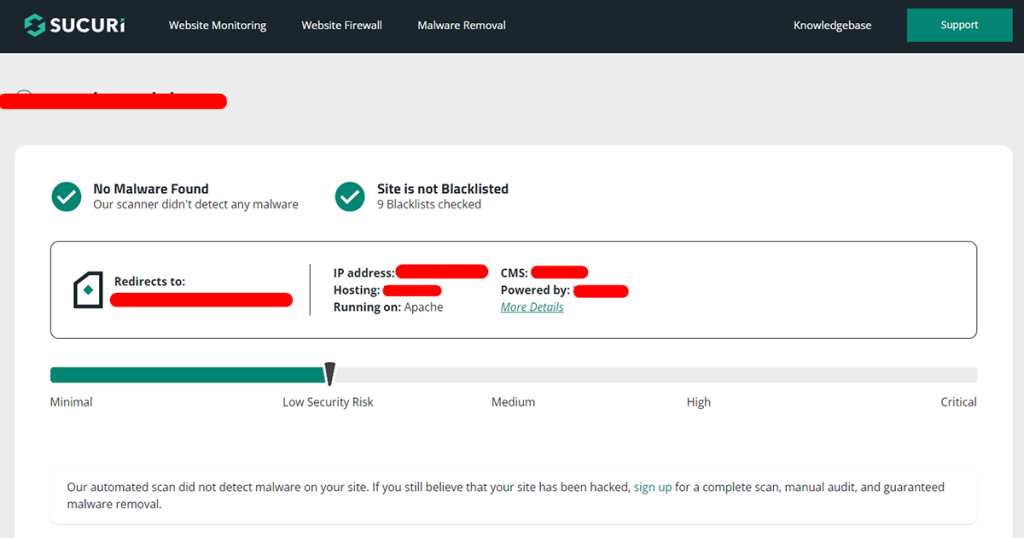
Here’s an example of a website scan on Sucuri free online scanner. There you’ve to provide only your domain name, it’ll automatically scan your full WordPress website in a few minutes.
2. Change Your WordPress admin, hosting Passwords and Review Access
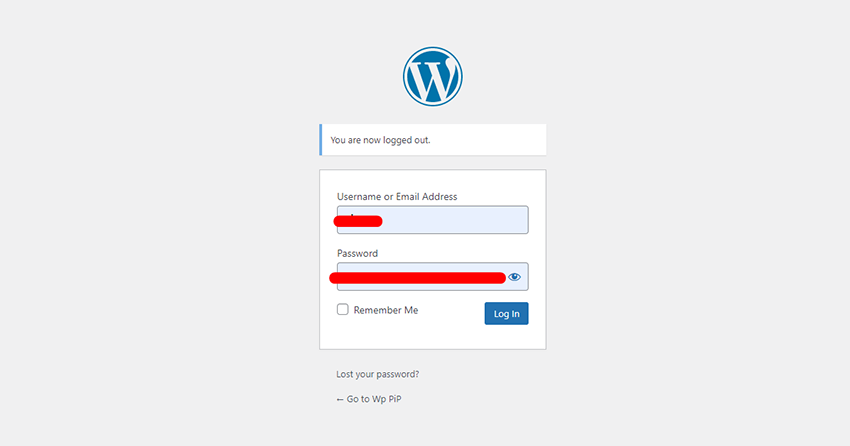
One of the most frequent types of cybersecurity risks is brute-force attacks. Hackers try a mixture of types of letter and number combinations to decode the admin account’s password. By changing every password, you may deny hackers access to your website and stop them from breaking into all other accounts and doing additional harm.
Here is a list of the account’s passwords you need to reset as soon as possible:
- Hosting account.
- FTP accounts, if you’ve any (primary and secondary).
- WordPress CMS (Content management system) admin account.
- Databases ( the database connection file).
- Email accounts linked to the website that was hacked.
In addition to resetting all of your passwords, we advise checking website user access credentials. If hackers can gain access to the website using an admin account, they will have full access to all administrative features.
Check the current user roles and permissions by visiting Users from the admin dashboard if the hacked website is hosted by WordPress. Admin and super admin positions should be reviewed as they have the highest level of privileged access.
If you’re not familiar to this, you can hire Website security professionals to remove malware. Contact us to get solution now.
3. Create a Backup of Your Website before changing or editing any file for malware removal
Before doing anything, creating a backup is best way to keep a safety if you delete anything by mistake. Here are the steps to follow for website backup:
For files backup:
- Go to your hosting account
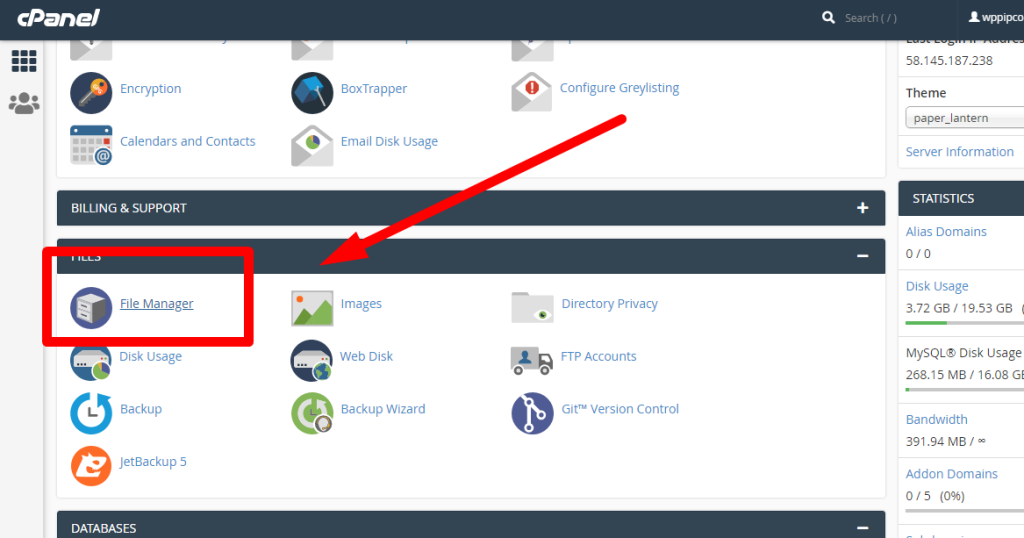
- Open cPanel and find files manager.
- Open your files manager
- Find your Domain home directory
- Select all files and create a zip file backup.
For Database Backup:
- Go to your Hosting account.
- Open cPanel and Go to file manager again.
- Open wp-config.php with file editor and find Database name.
- Close wp-config.php and go back to cPanel.
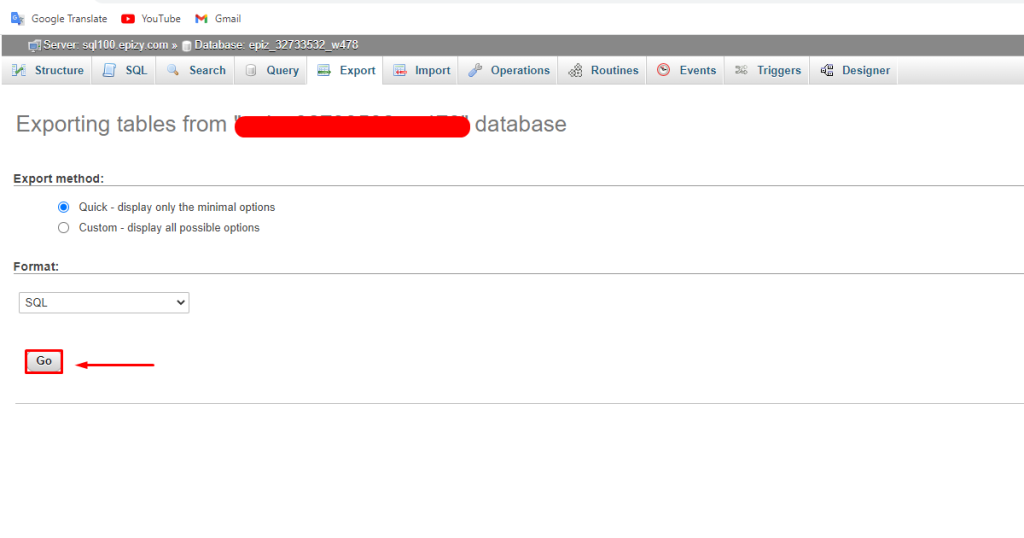
- Find “PhpMyadmin” and click on it.
- It’ll redirect to new tab, find and select the table you’ve seen on wp-config.php
- Click on Export on top.
- Click on the “Go” button.
It’ll download the Database now.
4. Site is not reachable/ showing error | How to recover the WordPress website?
If your WordPress site shows an error/redirects to another site after being affected by malware, don’t worry. Here are the steps you can follow:
- Go to your hosting provider.
- Access the cPanel’s file manager/ FTP on filezilla or any File transfer protocol.
- Access to WordPress main files (Wp-admin, wp-content, wp-includes)
- Delete all files except the Wp-content folder, wp-config.php, and .htaccess files.
- Download the latest version of WordPress by going WordPress official link here.
- Upload the zip file on your server.
- Unzip files to a new folder.
- Move all files to your Domain home directory without the Wp-content folder. (There should have a folder already).
- Now check your site if showing online.
Warning: If you don’t have enough knowledge of files/ WordPress, please contact us to fix and remove malware from your sites. Our expert team will fix everything. Contact us
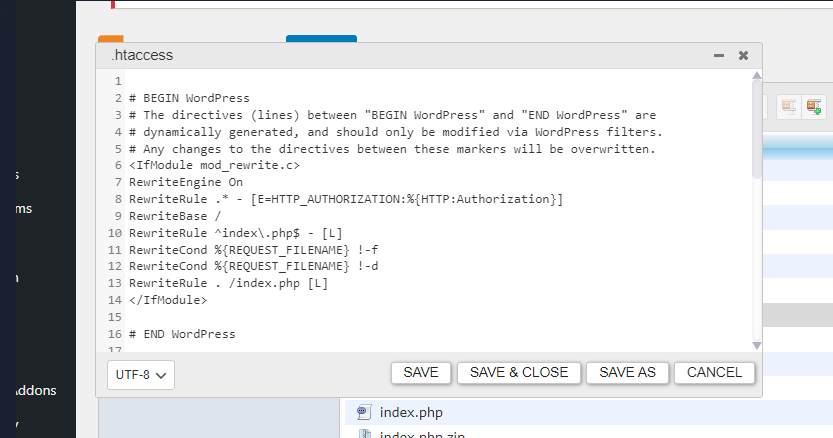
6. Reset Your .htaccess File
A website hosted on the Apache Web Server often has a file called .htaccess that contains high-level configuration settings.Because of this,.htaccess is frequently the subject of cyber threats.
Some of the most popular .htaccess file vulnerabilities are:
- Malware redirection from search engines.
- malware redirection from error pages.
- The injection of malware into PHP scripts.
- Information sharing.
- Fingerprinting of browsers.
- Watering hole attacks.
It could be possible to resolve the security problem by disabling and then re-enabling your.htaccess file. Change its file permissions as well to restrict access to only specific users.
7. Malware removal from infected WordPress website files
Scan, Identify and remove all of the WordPress files that have been affected by malware. All these tasks can be done manually, but it takes more time and effort. There are some popular plugins for that, for example
Malware scan and removal with Free Wordfence plugin.
Wordfence Security is a full-featured security plugin that comes with a firewall, malware scanning, and other security tools. It is among the most well-liked security plugins for WordPress and is free available on WordPress repository.
Steps to install and remove malware from WordPress:
- Go to WordPress Admin dashboard.
- Click on “Plugins” on the left sidebar.
- Click on add new.
- Now write “WordFence” on the search box and search.
- Install and activate the plugin.
- After activating go to “WordFence” on the left sidebar.
- Click on scan and start new scan to start scanning.

Complete guide on how to remove malware from hacked WordPress website | Best practices
There’s no need to fear; the majority of hacked WordPress websites can be recovered. Without carefully considering the problem, an emotional response might do more harm than good. In this article, we’ll discuss about how to remove malware with best possible ways to get rid of it.1. Check if your website infected with malware or not
There are some well-known, free online scanners to scan easily, simple to use. For example, VirusTotal, Securi, SiteLock, SiteGuarding, MalCare, Astra Security, Quttera, etc.Here’s an example of a website scan on Sucuri free online scanner. There you’ve to provide only your domain name, it’ll automatically scan your full WordPress website in a few minutes.
2. Change Your WordPress admin, hosting Passwords and Review Access
One of the most frequent types of cybersecurity risks is brute-force attacks. Hackers try a mixture of types of letter and number combinations to decode the admin account’s password. By changing every password, you may deny hackers access to your website and stop them from breaking into all other accounts and doing additional harm.Here is a list of the account’s passwords you need to reset as soon as possible:- Hosting account.
- FTP accounts, if you’ve any (primary and secondary).
- WordPress CMS (Content management system) admin account.
- Databases ( the database connection file).
- Email accounts linked to the website that was hacked.

3. Create a Backup of Your Website before changing or editing any file for malware removal
Before doing anything, creating a backup is best way to keep a safety if you delete anything by mistake. Here are the steps to follow for website backup:For files backup:- Go to your hosting account
- Open cPanel and find files manager.
- Open your files manager
- Find your Domain home directory
- Select all files and create a zip file backup.
- Go to your Hosting account.
- Open cPanel and Go to file manager again.
- Open wp-config.php with file editor and find Database name.
- Close wp-config.php and go back to cPanel.
- Find “PhpMyadmin” and click on it.
- It’ll redirect to new tab, find and select the table you’ve seen on wp-config.php
- Click on Export on top.
- Click on the “Go” button.

4. Site is not reachable/ showing error | How to recover the WordPress website?
If your WordPress site shows an error/redirects to another site after being affected by malware, don’t worry. Here are the steps you can follow:- Go to your hosting provider.
- Access the cPanel’s file manager/ FTP on filezilla or any File transfer protocol.
- Access to WordPress main files (Wp-admin, wp-content, wp-includes)
- Delete all files except the Wp-content folder, wp-config.php, and .htaccess files.
- Download the latest version of WordPress by going WordPress official link here.
- Upload the zip file on your server.
- Unzip files to a new folder.
- Move all files to your Domain home directory without the Wp-content folder. (There should have a folder already).
- Now check your site if showing online.

6. Reset Your .htaccess File
A website hosted on the Apache Web Server often has a file called .htaccess that contains high-level configuration settings.Because of this,.htaccess is frequently the subject of cyber threats.Some of the most popular .htaccess file vulnerabilities are:- Malware redirection from search engines.
- malware redirection from error pages.
- The injection of malware into PHP scripts.
- Information sharing.
- Fingerprinting of browsers.
- Watering hole attacks.

7. Malware removal from infected WordPress website files
Scan, Identify and remove all of the WordPress files that have been affected by malware. All these tasks can be done manually, but it takes more time and effort. There are some popular plugins for that, for exampleMalware scan and removal with Free Wordfence plugin.
Wordfence Security is a full-featured security plugin that comes with a firewall, malware scanning, and other security tools. It is among the most well-liked security plugins for WordPress and is free available on WordPress repository.Steps to install and remove malware from WordPress:- Go to WordPress Admin dashboard.
- Click on “Plugins” on the left sidebar.
- Click on add new.
- Now write “WordFence” on the search box and search.
- Install and activate the plugin.
- After activating go to “WordFence” on the left sidebar.
- Click on scan and start new scan to start scanning.
Once you’ve discovered that your WordPress website has been compromised, the first step is to remain calm. It’s crucial to approach the situation with a clear mind to remove malware efficiently and restore your site’s integrity. Generally, the process to remove malware from a hacked WordPress site requires systematic steps to ensure that no malicious elements linger. This tackles any vulnerabilities that could lead to further security breaches, ensuring your peace of mind and the safety of your site’s visitors.
First, take your site offline. You don’t want visitors interacting with a compromised site, risking further harm. Placing the site under maintenance mode maintains a professional appearance. As you prepare to dive in, remember that accurate identification is key. Malware scanning plugins, like Wordfence or Sucuri, are indispensable. These tools scan your files and databases to identify malware, suspicious files, or any unauthorized changes. After scanning, they provide detailed reports, guiding you toward specific areas requiring attention.
After detecting malware, it’s time to manually review and clean your files. Although plugins can help, manual inspection ensures no stone is left unturned. Focus on key areas like wp-content/themes, wp-content/plugins, and wp-config.php files, which are commonplace for malware intrusions. If you’re not comfortable handling code at this level, hiring a professional might be a wise decision. Their experience can swiftly eradicate threats and strengthen your site’s defenses.
Next, change all passwords related to your WordPress, FTP, and database accounts. Implement strong, unique passwords to lower the chances of future attacks. Consider utilizing a password manager to maintain security without having to remember complex passwords. Moreover, the primary focus should pivot towards updating your core files, themes, and plugins. Developers constantly update software to patch vulnerabilities, so staying up-to-date helps heap layers of protection on your website.
As you navigate through this process, remember: a comprehensive backup strategy is non-negotiable. Regular backups provide insurance against data loss, letting you restore your site to a clean version should something go awry. Verify that your backups are stored in a secure location separate from your server, ensuring accessibility even if your main account is compromised.
Once you’ve managed to remove malware from your hacked WordPress, thorough testing becomes imperative. Reload your saved backups in a safe environment and verify that everything functions as it should. Double-check that your security plugin is actively monitoring your site. Set up notifications to alert you of suspicious behavior. Responding swiftly to any potential threat drastically reduces risk. Remember, a successful operation doesn’t mean complete safety if there are residual vulnerabilities left unchecked.
The journey to remove malware hacked WordPress: complete isn’t just about cleaning a current issue—it’s about fortifying your defenses for the future. Educate yourself on potential threats. Use SSL to encrypt data between your website and visitors. Disabling file editing through the WordPress dashboard adds another layer of protection. Consistently review
