WordPress is one of the most popular website building platforms in the world, but it can also be prone to problems. If your WordPress website is running slow, experiencing errors, or has been hacked, it’s time to take action. In this article, we’ll discuss some essential tips for fixing your WordPress website and how to optimizing its performance and security.

1. Update WordPress latest version, Theme and Plugins

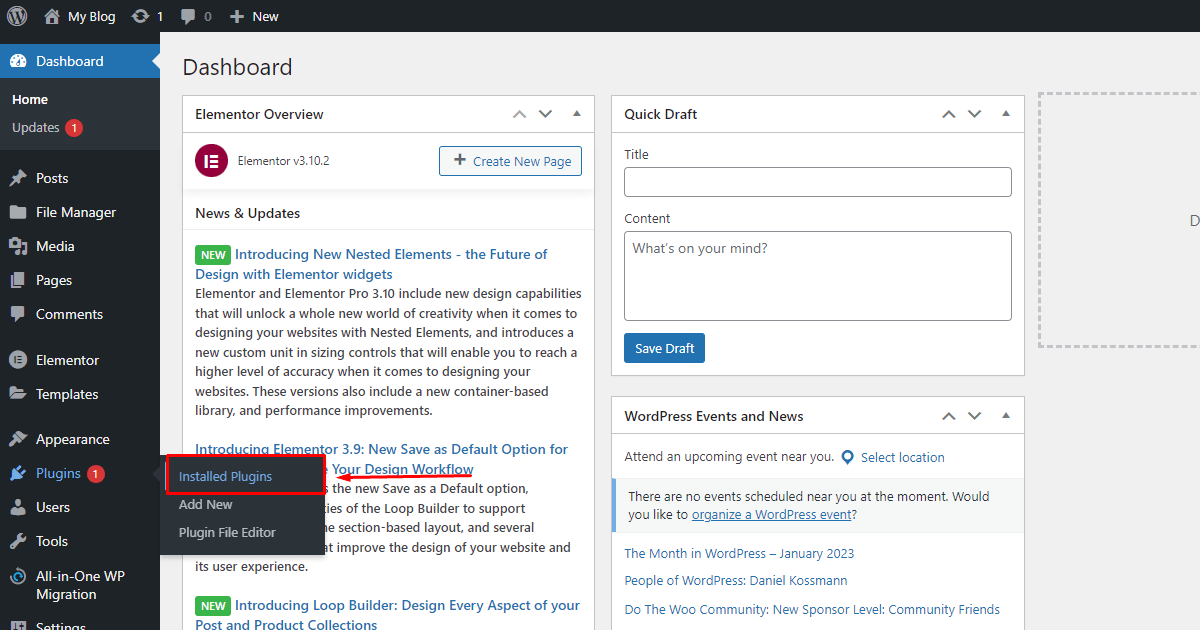
Outdated software is one of the main causes of security vulnerabilities and performance issues on WordPress websites. To fix your website, be sure to update WordPress to the latest version, as well as all installed plugins and themes. This will ensure that your website is protected from known security threats and is running on the most recent and optimized software.


There are tree ways to update the themes and plugins:

  1. In the WordPress dashboard, go to update  > scroll down> select all > click on update plugins.
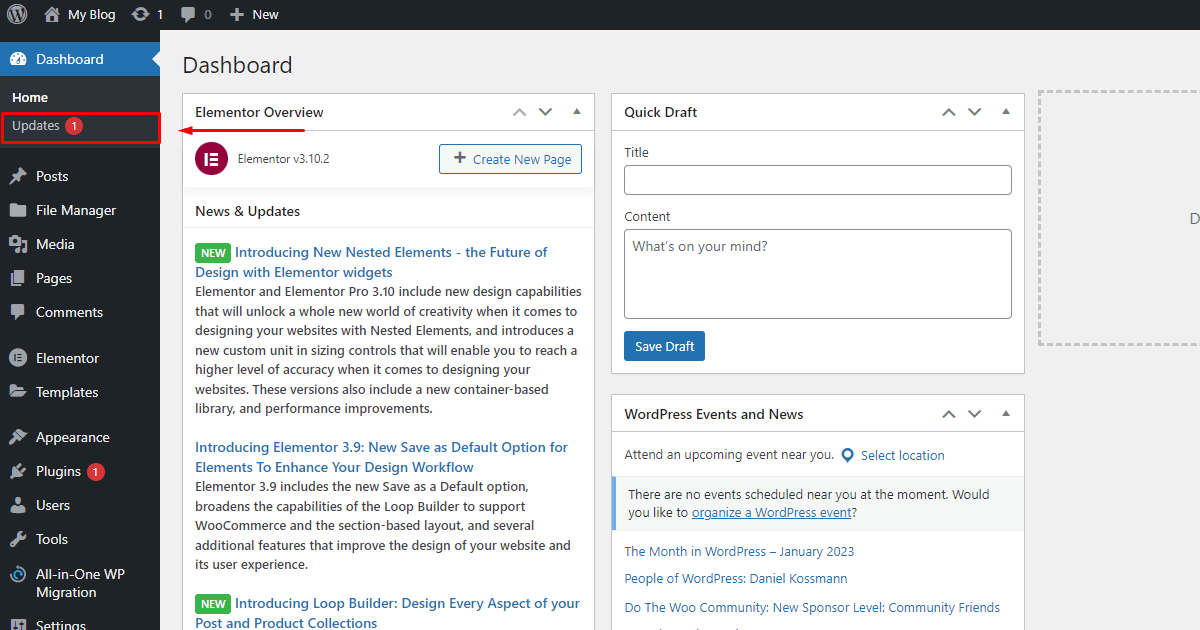
    Update WordPress and Plugins for WordPress malware removal and protection scroll down> select all > click on update plugins.Update Plugins for WordPress malware removal and protection
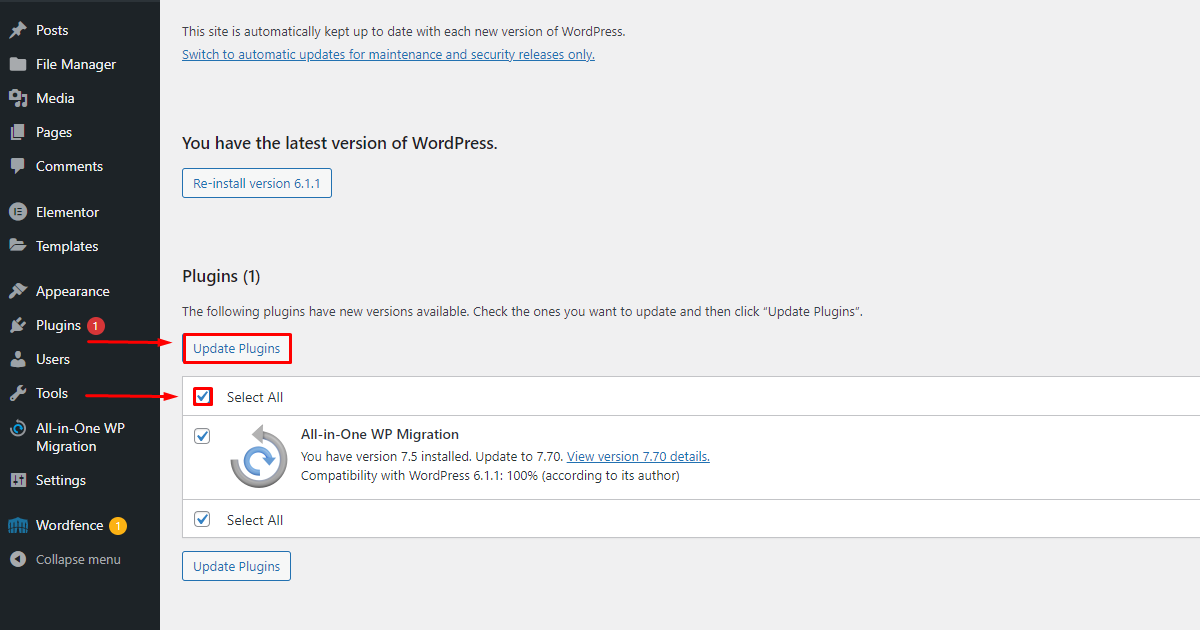
    The plugin’s upgrade can take some time. After that the update process should be complete.

  2. You can bulk update your plugins by visiting your WordPress dashboard, go to Plugins > Installed Plugins.install Plugins for WordPress protectionThis is a WordPress page that lists all plugins installed on our website. Read more about the updated version of the plugin. Below each plugin that has an available update, you’ll see a yellow box that says “A new version of [plugin] is available.” It is recommended to review the changes made in the update before applying the update plugin. click update install Plugins for WordPress protection
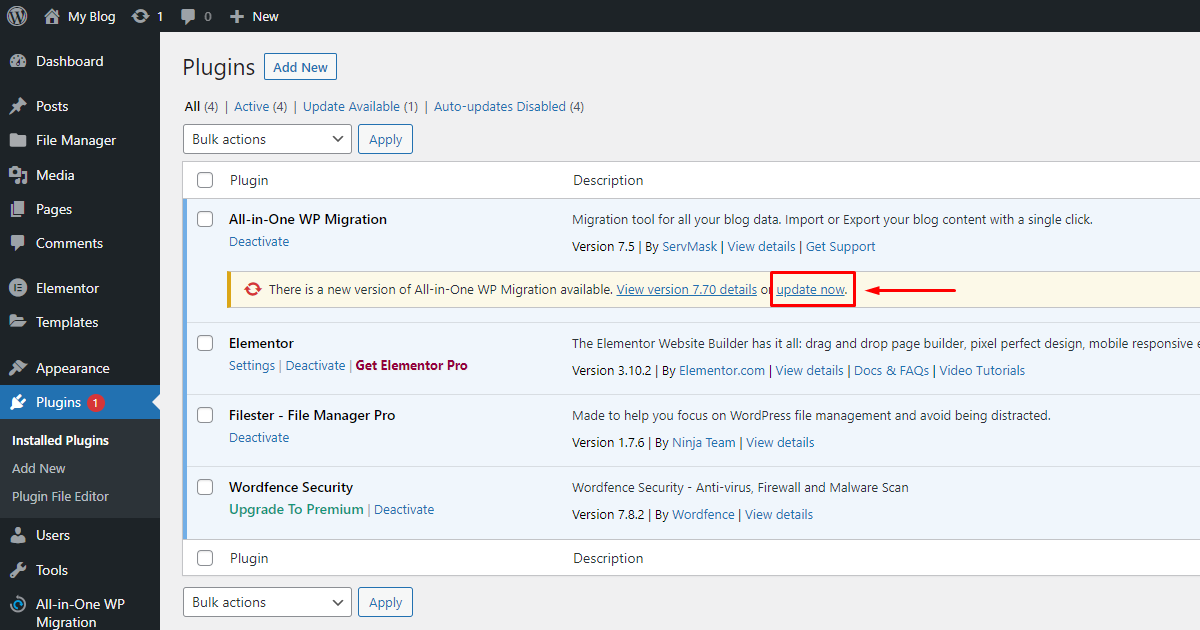
    Click “Update Now” when you are ready to update the plugin. It may take some time to update the plugin. If you are updating multiple plugins, wait until the current plugin update completes before updating the next plugin.

    Alternatively, you can update plugins in bulk. Instead of updating one at a time, you can update plugins in bulk. On the Installed Plugins page, select the checkbox next to each plugin. Select Update from the Bulk Action drop-down list and click Apply. click bulk update Plugins for WordPress protection
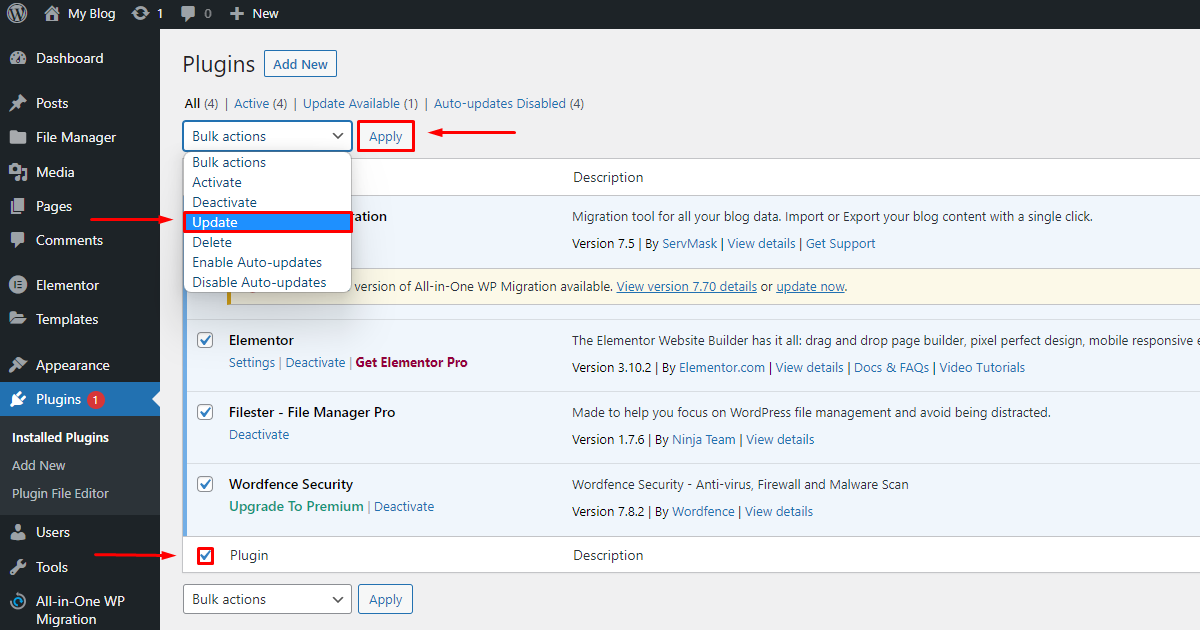
  3.  Alternatively, you can upload latest version of the plugin and replace old plugins to your site.             

    Fast of all Download the latest version of  plugin .zip file from WordPress official repository or developer company website.             

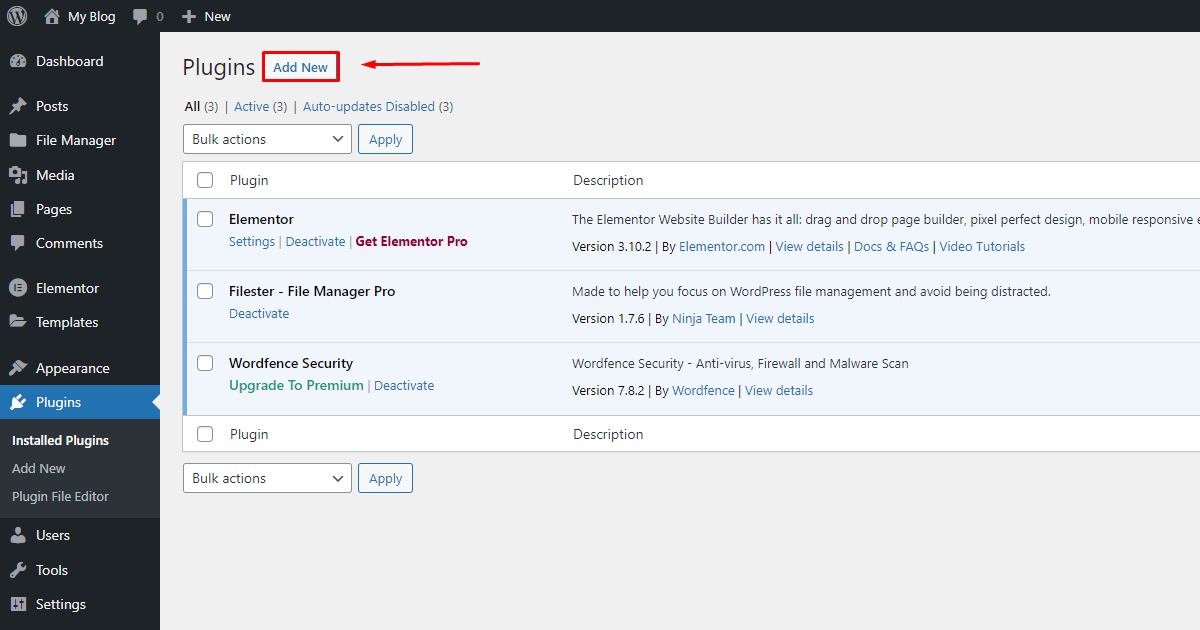
    Then go to your WordPress dashboard to Plugins > Installed Plugins> Add New                                 manual update Plugins for WordPress malware protection
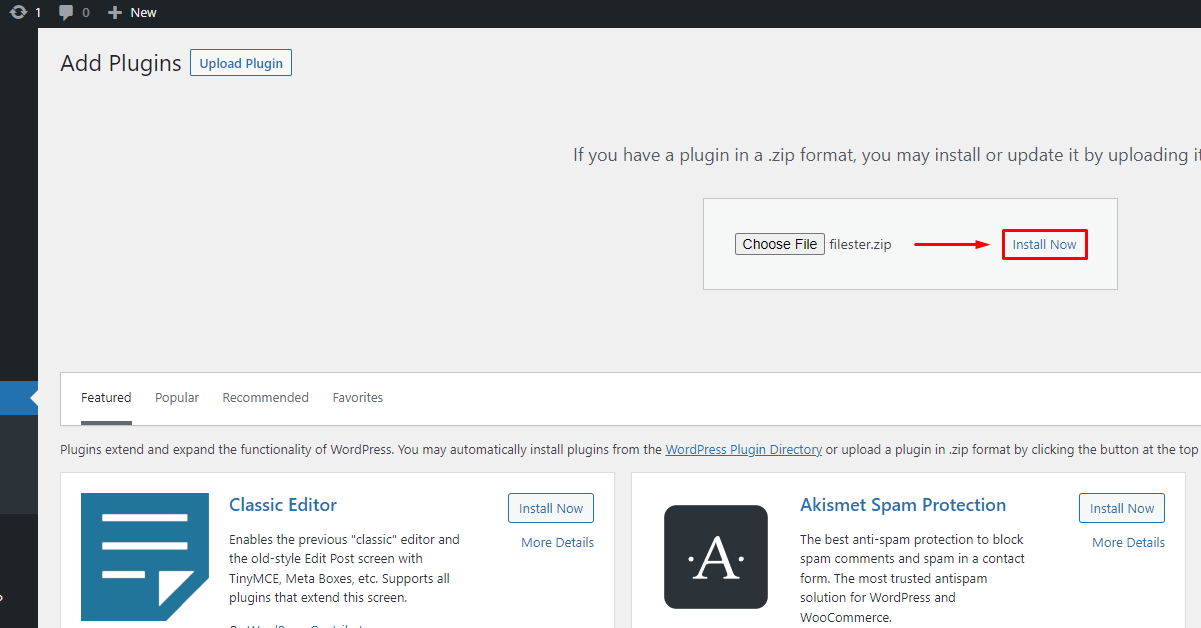
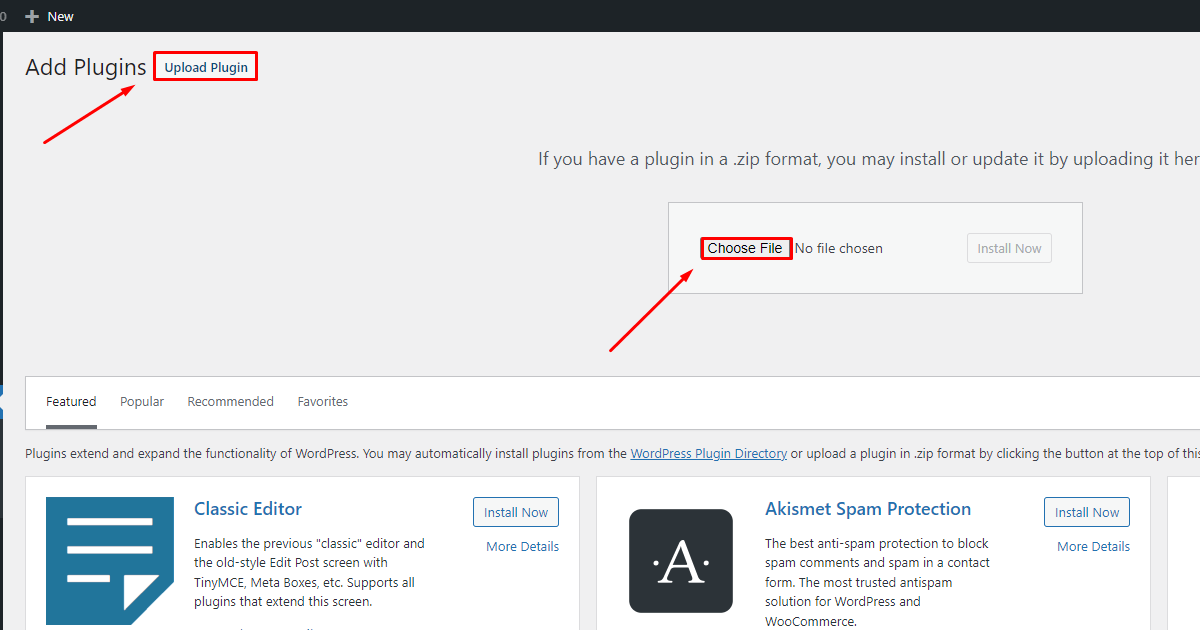
    Than click the upload plugin > choose file >                  choose files for WordPress malware protection and removal
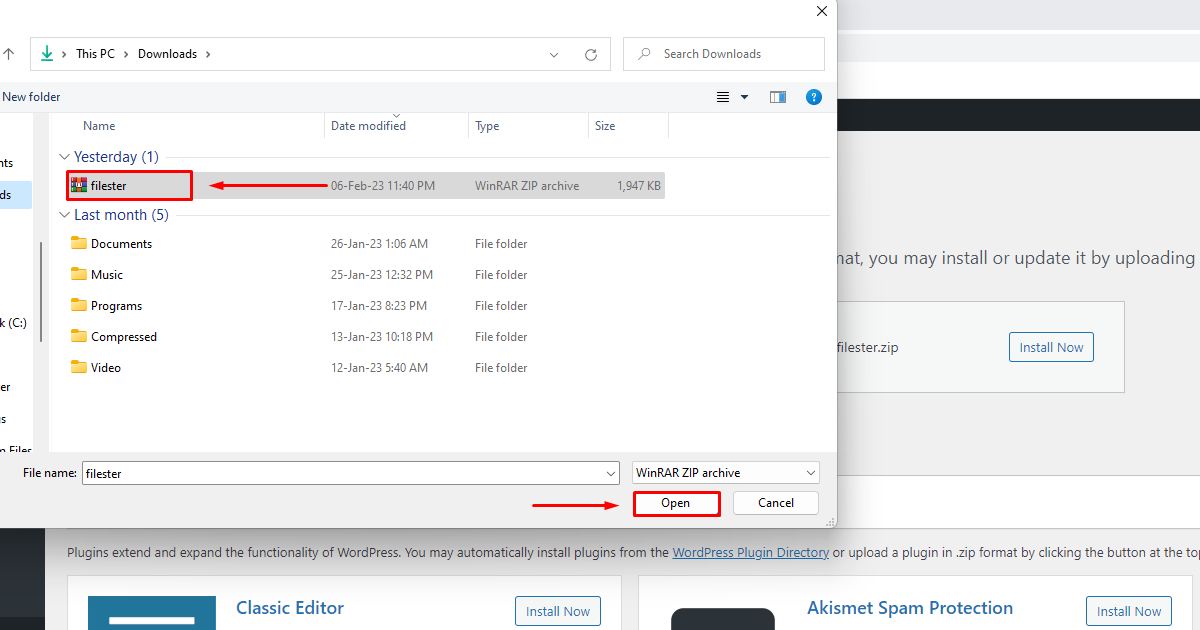
    after that select the file and click to open button.                        manual update open Plugins files for WordPress malware protection 
    Then click the install now button        manual update Plugins for WordPress protection After that the plugin may take some time to installing to update. Please be patience while it’s uploading and replace the old plugin files.
2. Clean Up Your WordPress Database to optimize the performance.

Over time, your WordPress database can become cluttered with junk data, such as post revisions, trashed posts, and spam comments. This junk data can slow down your website and take up valuable space on your server. Use a plugin like WP-Optimize to clean up your database and improve website performance.

Here we’ll discuss a short tutorial about how to optimizing WordPress database with free plugins or manually.


Optimizing WordPress database with free plugins

In this tutorial, we’ll use WP-Optimize, a comprehensive solution that includes site caching, image compression, and database cleaning tools. It’s also free (with some premium options).


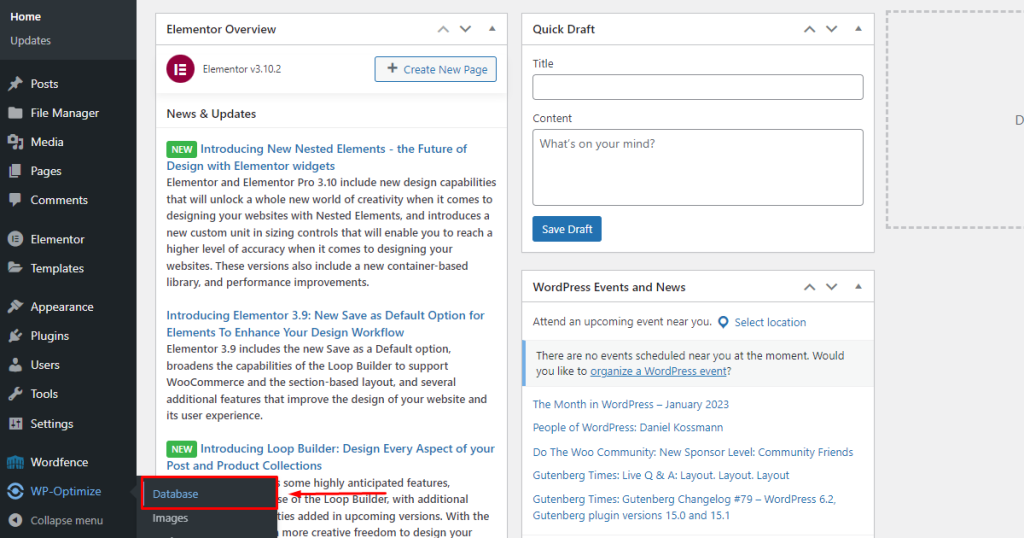
After installing and activating the plugin, go to WP-Optimize → Database in your WordPress dashboard. Under the Optimization heading, you can select which parts of the database to clean up.

Clean Up Your Database for WordPress malware protection

WP-Optimize can delete the following data:

using wp-optimize for Clean Up Your Database for WordPress malware protection

Warning: If you don’t have enough knowledge of database of WordPress, please contact us to optimize your sites. Our expert team will fix everything.

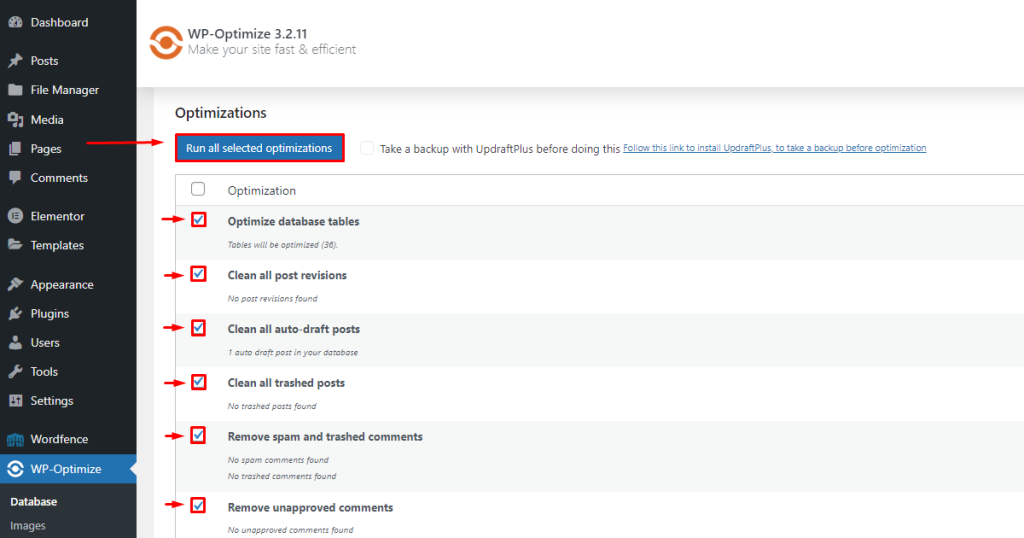
Click to the check box and select to following data:

  • Optimize database tables

  • Clean all post revisions

  • Clean all auto-draft posts

  • Clean all trashed posts

  • Remove spam and trashed comments

  • Remove unapproved comments

Then select Run optimization next to the appropriate action.

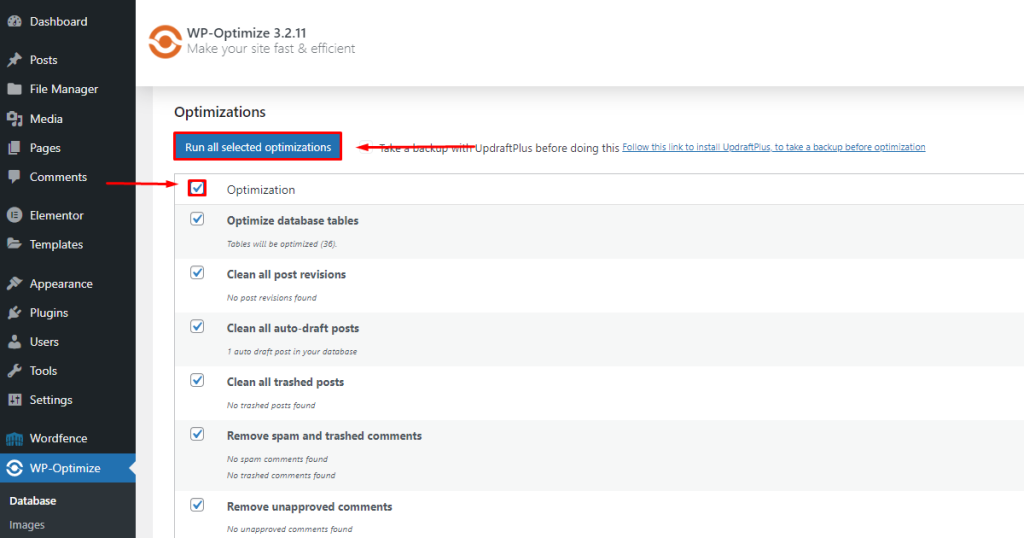
You can also click “Run all selected optimizations” at the top of the page after checking the box next to each adjustment you want to run.


wp-optimize for Clean Up Your Database for WordPress protection

Some actions have an exclamation point next to them. These indicate that database tuning is dangerous and can lead to data corruption.

Clean up your WordPress database manually with phpMyAdmin

Additionally, you can manually clean up your WordPress database using phpMyAdmin. This method is a bit more involved as it requires you to use cPanel in your hosting provider’s dashboard, but it gives you complete control over the process. Please note that the steps below may vary depending on your particular hosting provider.


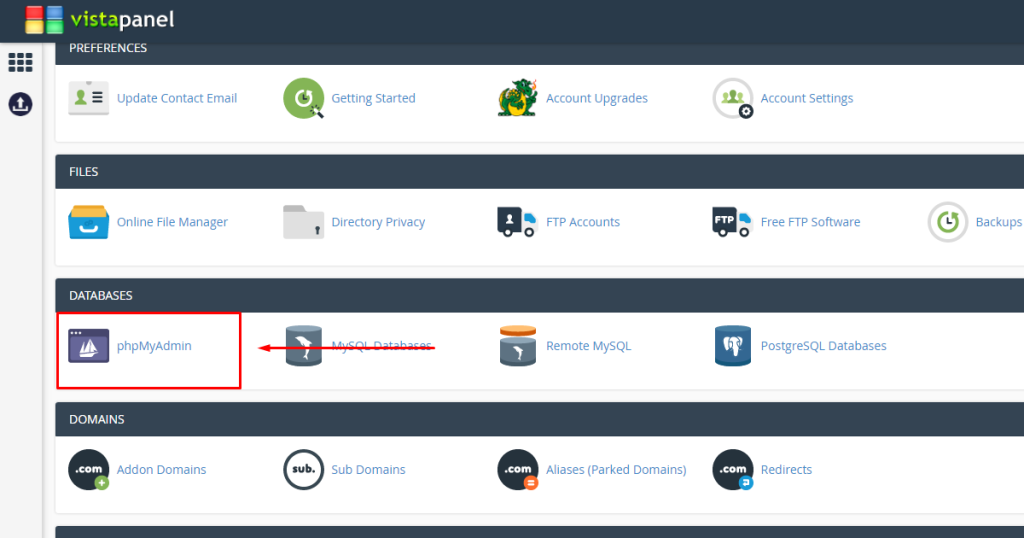
Log into your hosting account, open cPanel → phpMyAdmin, and click Databases.

vistapanel for Clean Up Your Database for wordpress protection

Select your database from the menu that appears. You will see a list of all the tables in your WordPress database.

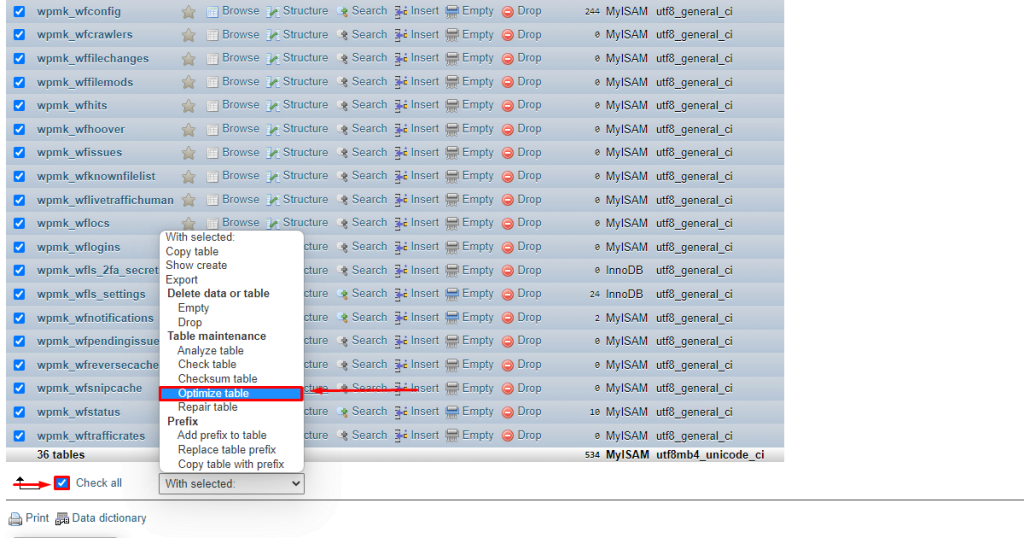
optimize table for Clean Up Your Database for WordPress protection

Select the table to clean. You can also scroll to the bottom of the page and check the Check All box. Then, under Table Maintenance, click Optimize Table. Wait a few seconds for the database optimization to complete. then you will see a success message.

3. Optimize your images for WordPress website optimizations.

Large images can slow down your website and affect your user experience and search engine rankings. To resolve this issue, optimize all images before uploading them to your website. Use a plugin like Smush to automatically enhance your images, or use software like Photoshop or Canva to manually compress your images. This tutorial describes some possibilities

Compress and upload WordPress Images with free online image optimizer.

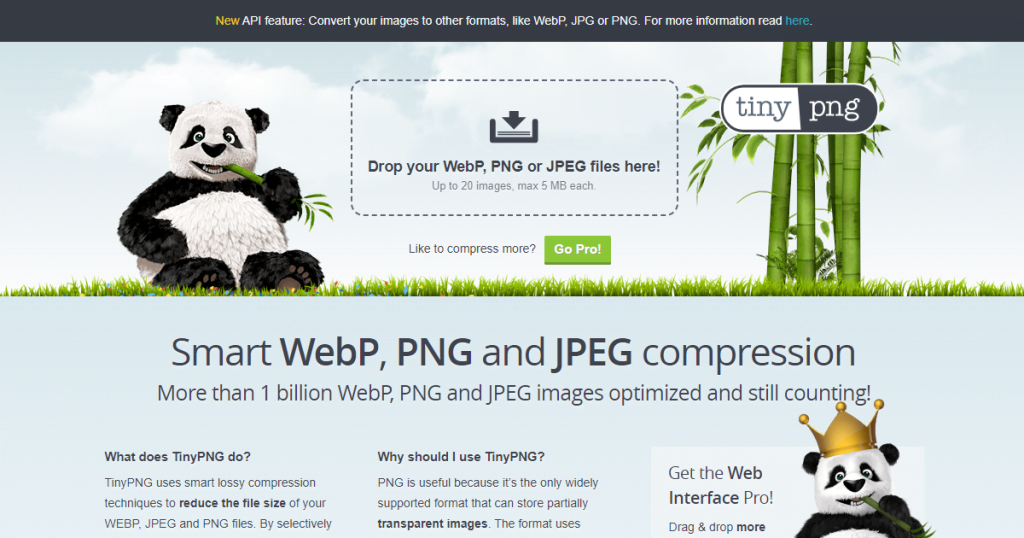
Compressing an image can reduce the file size. Compressed image files will load faster on your WordPress website and increase speed. Large images can be compressed manually using image editing software or free tools like TinyPNG before uploading to WordPress.

online image compression for WordPress malware protection

TinyPNG does not only accept PNG images. Works with other image file formats such as WebP and JPEG. Just upload the image you want to compress and the tool will reduce its size. This tool can also compress multiple files at once.

Change image size

Another way to optimize your images for WordPress is to change their pixel size. Luckily, this functionality is built into WordPress core.

image size for WordPress malware protection

By default WordPress uses 4 different sizes of the same image.

  • Thumbnail (150 x 150 pixels)
  • Medium (up to 300 x 300 pixels)
  • Large (up to 1024 x 1024 pixels)
  • Full size (original image size)

This means you can customize it to your liking.


To change the default WordPress image size via the media library:

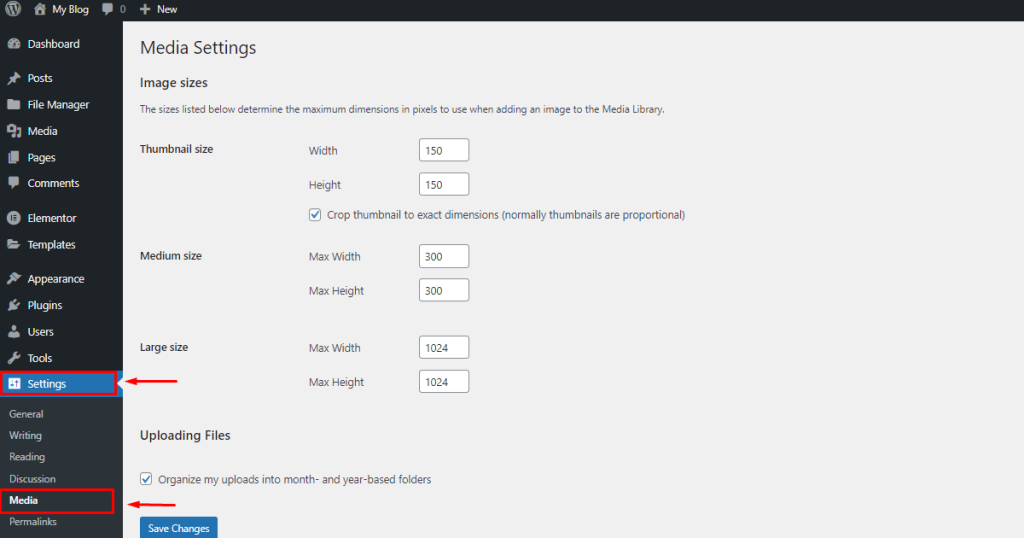
Open your WordPress dashboard and go to Settings -> Media.

Enter the desired maximum width and height for each size. Click Save changes.

WordPress image size settings.

Serve Images Through a CDN

A Content Delivery Network (CDN) is a globally distributed system of edge servers that enable rapid delivery of website content such as images, videos, CSS, and JavaScript. When your WordPress website uses a CDN, copies of your image are distributed from your origin server to edge servers around the world. The edge server closest to the visitor serves the image. Common WordPress CDN providers include Cloudflare, KeyCDN, and Sucuri.

free cdn for WordPress malware protection

4. Clean up your WordPress media library

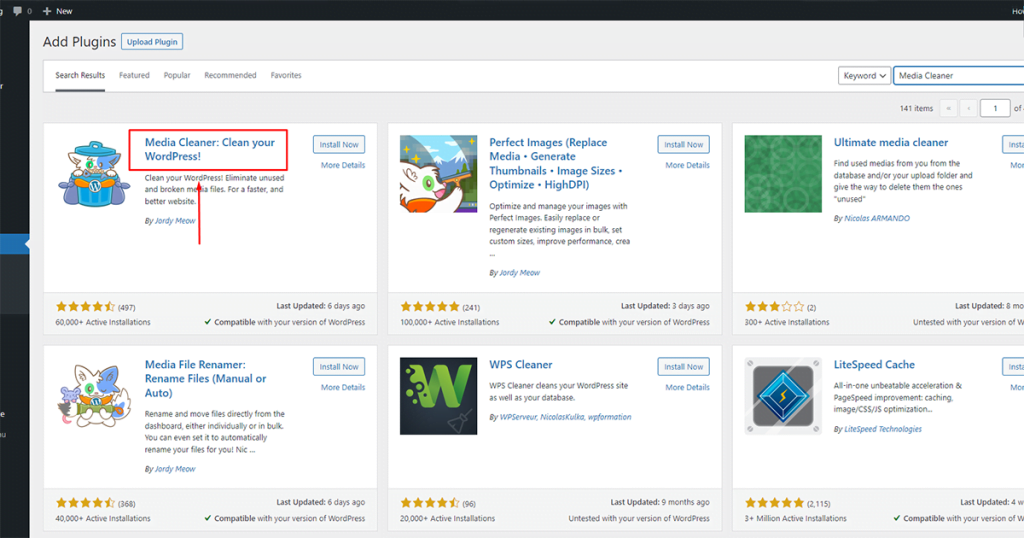
As your WordPress site grows, its media library accumulates many uploaded images. Many of these uploaded images are displayed on the website, but many of them may not be used. For example, images from deleted blog posts remain in the media library. There are many free WordPress plugins to clean your media library such as Media Cleaner, WPS Cleaner, Litespeed Cache.

media cleaner for WordPress malware protection

5. Implement strict security measures for WordPress website security.

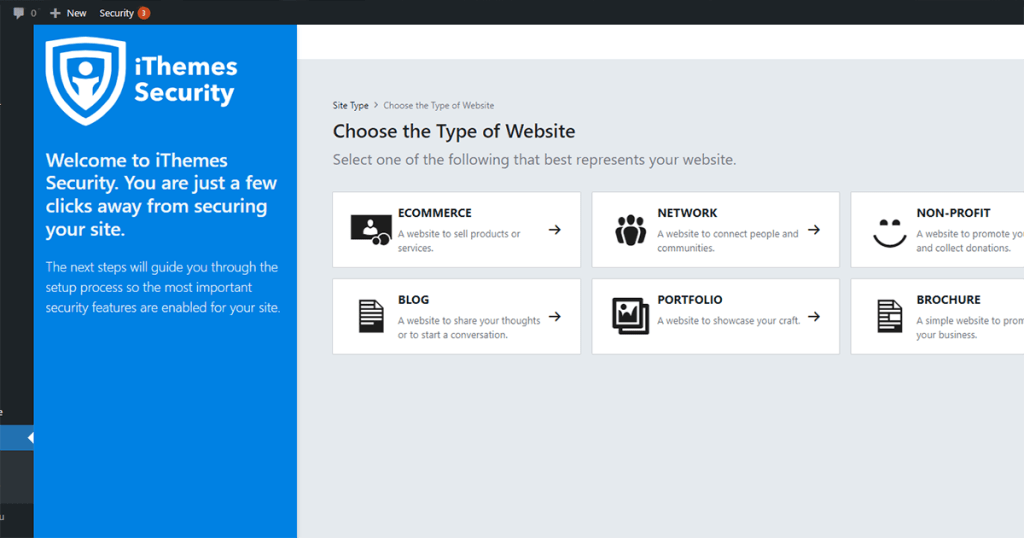
Securing your WordPress website is essential to protecting your data and your users’ information. Use strong passwords, limit login attempts, and use security plugins like Wordfence and iThemes Security to protect your website from hacks and malware. 

itheme security for WordPress malware protection

In conclusion, fixing your WordPress website is essential for optimal performance and security. By updating software, cleaning up your database, optimizing images, using a caching plugin, and implementing strong security measures, you can ensure that your website is fast, secure, and functioning at its best.”

Essential Tips on Optimizing WordPress Performance and Security

WordPress is one of the most popular website building platforms in the world, but it can also be prone to problems. If your WordPress website is running slow, experiencing errors, or has been hacked, it’s time to take action. In this article, we’ll discuss some essential tips for fixing your WordPress website and how to optimizing its performance and security.

1. Update WordPress latest version, Theme and Plugins

Outdated software is one of the main causes of security vulnerabilities and performance issues on WordPress websites. To fix your website, be sure to update WordPress to the latest version, as well as all installed plugins and themes. This will ensure that your website is protected from known security threats and is running on the most recent and optimized software.There are tree ways to update the themes and plugins:
  1. In the WordPress dashboard, go to update  > scroll down> select all > click on update plugins.Update WordPress and Plugins for WordPress malware removal and protection scroll down> select all > click on update plugins.Update Plugins for WordPress malware removal and protectionThe plugin’s upgrade can take some time. After that the update process should be complete.
  2. You can bulk update your plugins by visiting your WordPress dashboard, go to Plugins > Installed Plugins.install Plugins for WordPress protectionThis is a WordPress page that lists all plugins installed on our website. Read more about the updated version of the plugin. Below each plugin that has an available update, you’ll see a yellow box that says “A new version of [plugin] is available.” It is recommended to review the changes made in the update before applying the update plugin. click update install Plugins for WordPress protectionClick “Update Now” when you are ready to update the plugin. It may take some time to update the plugin. If you are updating multiple plugins, wait until the current plugin update completes before updating the next plugin.Alternatively, you can update plugins in bulk. Instead of updating one at a time, you can update plugins in bulk. On the Installed Plugins page, select the checkbox next to each plugin. Select Update from the Bulk Action drop-down list and click Apply. click bulk update Plugins for WordPress protection
  3.  Alternatively, you can upload latest version of the plugin and replace old plugins to your site.Fast of all Download the latest version of  plugin .zip file from WordPress official repository or developer company website.             Then go to your WordPress dashboard to Plugins > Installed Plugins> Add New                                 manual update Plugins for WordPress malware protectionThan click the upload plugin > choose file >                  choose files for WordPress malware protection and removalafter that select the file and click to open button.                        manual update open Plugins files for WordPress malware protection Then click the install now button        manual update Plugins for WordPress protection After that the plugin may take some time to installing to update. Please be patience while it’s uploading and replace the old plugin files.
2. Clean Up Your WordPress Database to optimize the performance.

Over time, your WordPress database can become cluttered with junk data, such as post revisions, trashed posts, and spam comments. This junk data can slow down your website and take up valuable space on your server. Use a plugin like WP-Optimize to clean up your database and improve website performance.Here we’ll discuss a short tutorial about how to optimizing WordPress database with free plugins or manually.

Optimizing WordPress database with free plugins

In this tutorial, we’ll use WP-Optimize, a comprehensive solution that includes site caching, image compression, and database cleaning tools. It’s also free (with some premium options).After installing and activating the plugin, go to WP-Optimize → Database in your WordPress dashboard. Under the Optimization heading, you can select which parts of the database to clean up.Clean Up Your Database for WordPress malware protectionWP-Optimize can delete the following data:using wp-optimize for Clean Up Your Database for WordPress malware protectionWarning: If you don’t have enough knowledge of database of WordPress, please contact us to optimize your sites. Our expert team will fix everything.Click to the check box and select to following data:
  • Optimize database tables
  • Clean all post revisions
  • Clean all auto-draft posts
  • Clean all trashed posts
  • Remove spam and trashed comments
  • Remove unapproved comments
Then select Run optimization next to the appropriate action.You can also click “Run all selected optimizations” at the top of the page after checking the box next to each adjustment you want to run.wp-optimize for Clean Up Your Database for WordPress protectionSome actions have an exclamation point next to them. These indicate that database tuning is dangerous and can lead to data corruption.

Clean up your WordPress database manually with phpMyAdmin

Additionally, you can manually clean up your WordPress database using phpMyAdmin. This method is a bit more involved as it requires you to use cPanel in your hosting provider’s dashboard, but it gives you complete control over the process. Please note that the steps below may vary depending on your particular hosting provider.Log into your hosting account, open cPanel → phpMyAdmin, and click Databases.vistapanel for Clean Up Your Database for wordpress protectionSelect your database from the menu that appears. You will see a list of all the tables in your WordPress database.optimize table for Clean Up Your Database for WordPress protectionSelect the table to clean. You can also scroll to the bottom of the page and check the Check All box. Then, under Table Maintenance, click Optimize Table. Wait a few seconds for the database optimization to complete. then you will see a success message.

3. Optimize your images for WordPress website optimizations.

Large images can slow down your website and affect your user experience and search engine rankings. To resolve this issue, optimize all images before uploading them to your website. Use a plugin like Smush to automatically enhance your images, or use software like Photoshop or Canva to manually compress your images. This tutorial describes some possibilities

Compress and upload WordPress Images with free online image optimizer.

Compressing an image can reduce the file size. Compressed image files will load faster on your WordPress website and increase speed. Large images can be compressed manually using image editing software or free tools like TinyPNG before uploading to WordPress.online image compression for WordPress malware protectionTinyPNG does not only accept PNG images. Works with other image file formats such as WebP and JPEG. Just upload the image you want to compress and the tool will reduce its size. This tool can also compress multiple files at once.

Change image size

Another way to optimize your images for WordPress is to change their pixel size. Luckily, this functionality is built into WordPress core.image size for WordPress malware protectionBy default WordPress uses 4 different sizes of the same image.
  • Thumbnail (150 x 150 pixels)
  • Medium (up to 300 x 300 pixels)
  • Large (up to 1024 x 1024 pixels)
  • Full size (original image size)
This means you can customize it to your liking.To change the default WordPress image size via the media library:Open your WordPress dashboard and go to Settings -> Media.Enter the desired maximum width and height for each size. Click Save changes.WordPress image size settings.

Serve Images Through a CDN

A Content Delivery Network (CDN) is a globally distributed system of edge servers that enable rapid delivery of website content such as images, videos, CSS, and JavaScript. When your WordPress website uses a CDN, copies of your image are distributed from your origin server to edge servers around the world. The edge server closest to the visitor serves the image. Common WordPress CDN providers include Cloudflare, KeyCDN, and Sucuri.free cdn for WordPress malware protection

4. Clean up your WordPress media library

As your WordPress site grows, its media library accumulates many uploaded images. Many of these uploaded images are displayed on the website, but many of them may not be used. For example, images from deleted blog posts remain in the media library. There are many free WordPress plugins to clean your media library such as Media Cleaner, WPS Cleaner, Litespeed Cache.media cleaner for WordPress malware protection

5. Implement strict security measures for WordPress website security.

Securing your WordPress website is essential to protecting your data and your users’ information. Use strong passwords, limit login attempts, and use security plugins like Wordfence and iThemes Security to protect your website from hacks and malware. itheme security for WordPress malware protectionIn conclusion, fixing your WordPress website is essential for optimal performance and security. By updating software, cleaning up your database, optimizing images, using a caching plugin, and implementing strong security measures, you can ensure that your website is fast, secure, and functioning at its best.”
“`html

Optimizing WordPress performance involves a multifaceted approach, where speed and security play crucial roles. However, another significant factor that many often overlook is the website’s navigation. Improving the navigation structure can significantly elevate the user’s journey, which directly impacts sales and conversions. When you optimize navigation for improved sales, you create a seamless path for visitors to transition from browsing to purchasing effortlessly.

The navigation menu acts as a roadmap for your website, guiding users to vital pages. An intuitive navigation design reduces bounce rates and keeps users engaged longer. For e-commerce sites or businesses reliant on conversions, it’s essential to optimize navigation for improved sales by ensuring that your most profitable pages are easily accessible. Position your main products or services prominently in the navigation bar, but avoid clutter. Simplicity should be the guiding principle; the easier it is for users to find what they need, the more likely they are to complete a purchase.

Moreover, employing descriptive labels in your navigation menu can further assist users in understanding their choices. Clear, action-oriented text helps in guiding users towards conversion-related activities like “Shop Now,” “Services,” or “Contact Us.” A/B testing different variations of menu items can reveal which phrasing or format works best. Paying attention to these details can help optimize navigation for improved sales as users find the process of moving from interest to action straightforward and compelling.

Speed is a critical element that complements these efforts. A fast-loading site ensures that visitors can access content quickly, maintaining their interest and preventing abandonment. Utilize caching plugins and optimize your images to enhance loading times. These technical adjustments minimize delays as users navigate through your pages, supporting a smoother journey toward transaction completion. Optimizing images not only saves bandwidth but also reduces server load, further contributing to quicker response times.

Security enhancements should not be overlooked, as they contribute to a trustworthy user experience. Implementing SSL certificates assures customers that their personal information is protected during transactions. Regularly update your WordPress version and plugins to shield your site from vulnerabilities. Such proactive measures build a sense of security for users, encouraging them to continue interacting with your site and making them more likely to become repeat customers.

User engagement tools like search bars and breadcrumb trails also complement your efforts to optimize navigation for improved sales. A search bar allows visitors to find specific products or information swiftly, which is particularly beneficial for sites with extensive catalogs. Breadcrumbs offer an unobtrusive method for users to trace their path through your site, reducing frustration and improving navigation ease. These tools ensure that users remain oriented and engaged, supporting higher conversion potential.

SEO optimization ties into navigation practices by improving the visibility of your site in search engines. Well-structured and clear navigation signals to search engines that your site is user-friendly, which can enhance rankings. Quick loading times, secured site environments, and easily navigable pages contribute positively to SEO. By aligning navigation, performance,

WhatsApp Logo Chat with Us