
Is your site blacklisted by McAfee? Have you ever wondered why after removing malware from your website your visitor get a warning when your visitors try to access your website? Because some anti-virus software vendors have blacklisted your website after it was infected with malware, it is still considered unsafe and your domain is still located on the blacklist.

But after removing the malware from your website and site is blacklisted by McAfee , you can contact them and request them to rescan your website, they will review your website and after checking, they will remove that site from their database blacklist.

As a result, your website will be marked as non-malicious and your normal rank will be restored. Mcafee antivirus is one such antivirus company.

In this tutorial, we will show how to remove the website blocklist from McAfee antivirus. The full McAfee website blacklist removal process.

Verify that the malware is removed

Before requesting removal from the blacklist, make sure that your website is free of any malware. You can use an online scanner like VirusTotal, Sucuri, or IThemes security to check your website for any malware and McAfee domain blacklist check. or You can use a WordPress scanner plugin like Sucuri, Wordfence, or shield security to check your website for any malware. For example, Scan results are given below.

Virustotal online scan result.
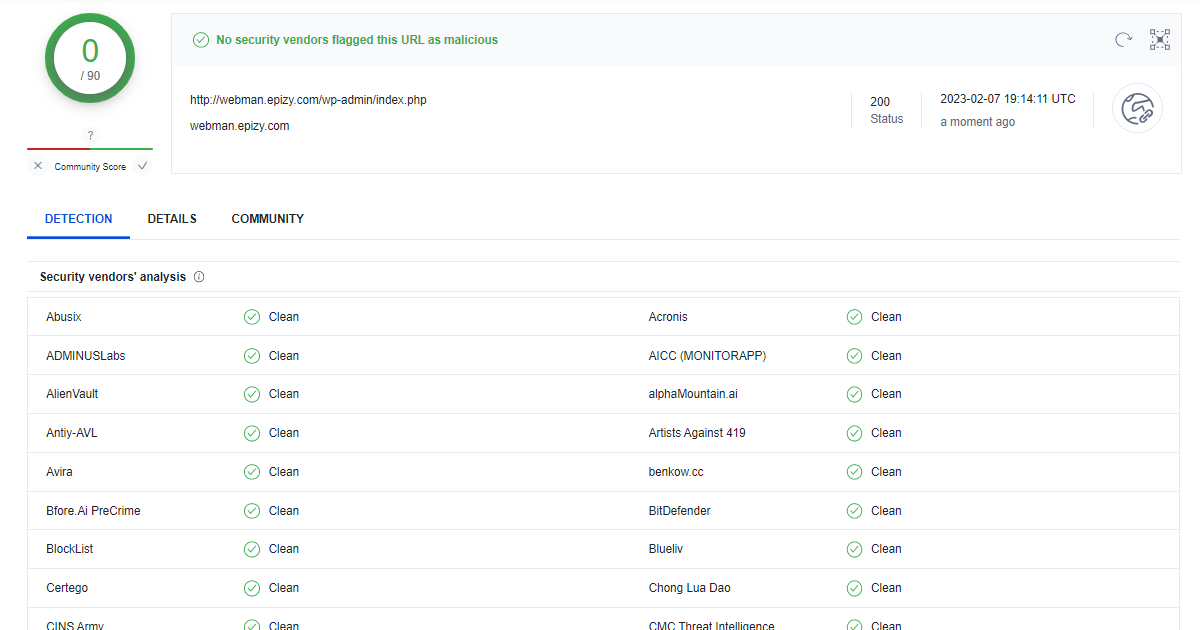
malware search result for WordPress malware protection

Wordfence Security plugin scan result.
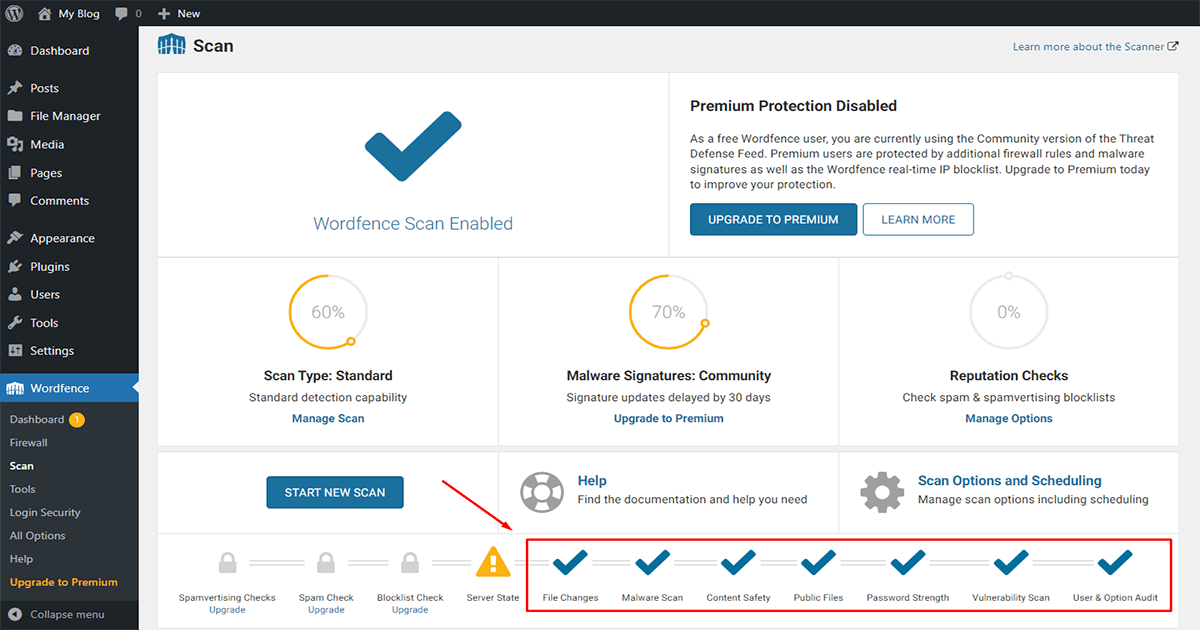
normal malware scan result on wordfence security plugin for WordPress malware removal

Request a review | McAfee request blacklist removal

Once you have confirmed that your website is malware-free, to remove site from McAfee blacklist you can request a review from the McAfee antivirus community. You can do this by visiting the McAfee official website and filling out the online form for malware removal. How to request a review from the McAfee community let’s learn to follow the step

First, Go to your google search engine and search “How to submit false positive on the McAfee ” and enter. You can see the link below, click on the link.
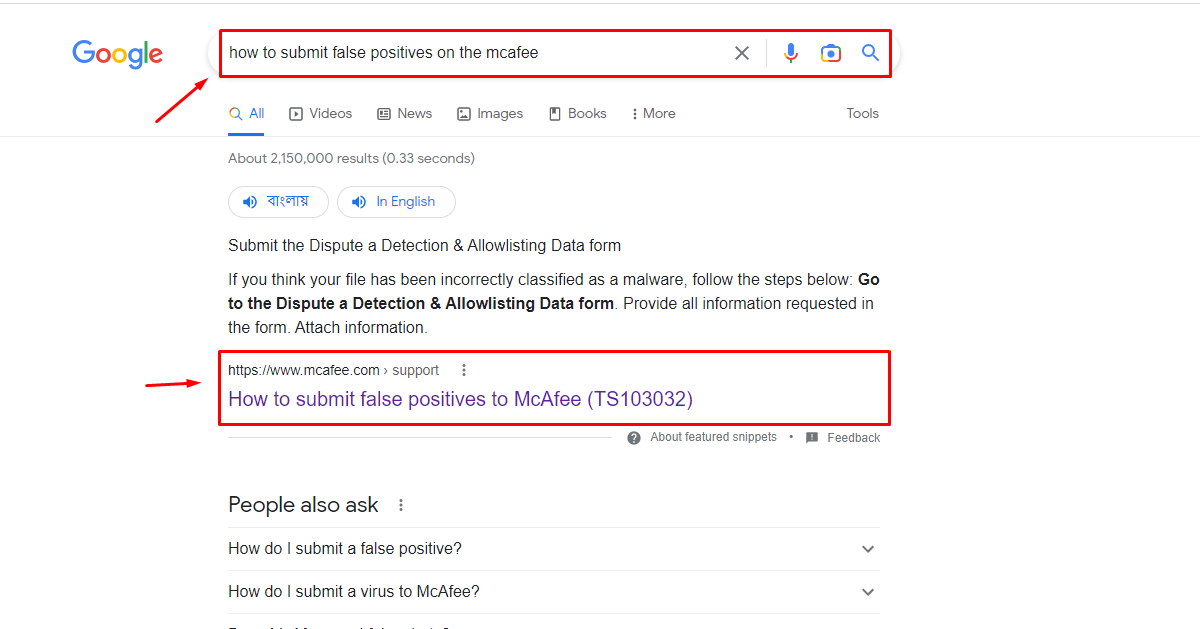
Google search results for submitting to the report on Mcafee for WordPress malware removal

After entering the support page you will see the headline “submit the dispute a detection & allow listing data form” click the link below the headline.
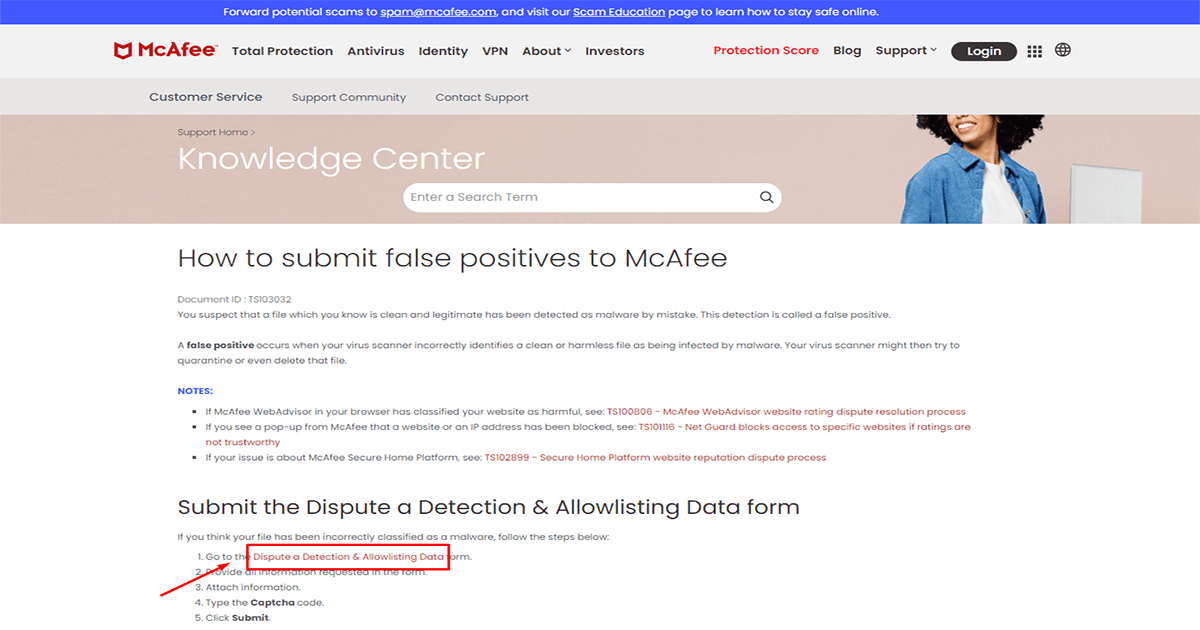
first page on Mcafee support for WordPress malware protection

Then you will see a form here. Fill out the form with your contact information and a description of your incorrectly flagged URL. Click the “Choose Files” button to select the file that you want to submit. You can also choose to include a screenshot or any other relevant information that may help McAfee in its review process. Once you have filled out the form and attached the necessary files, click the “Submit” button to send the information to McAfee. After submitting the false positive report, you may receive an automated email confirming that McAfee has received your submission.
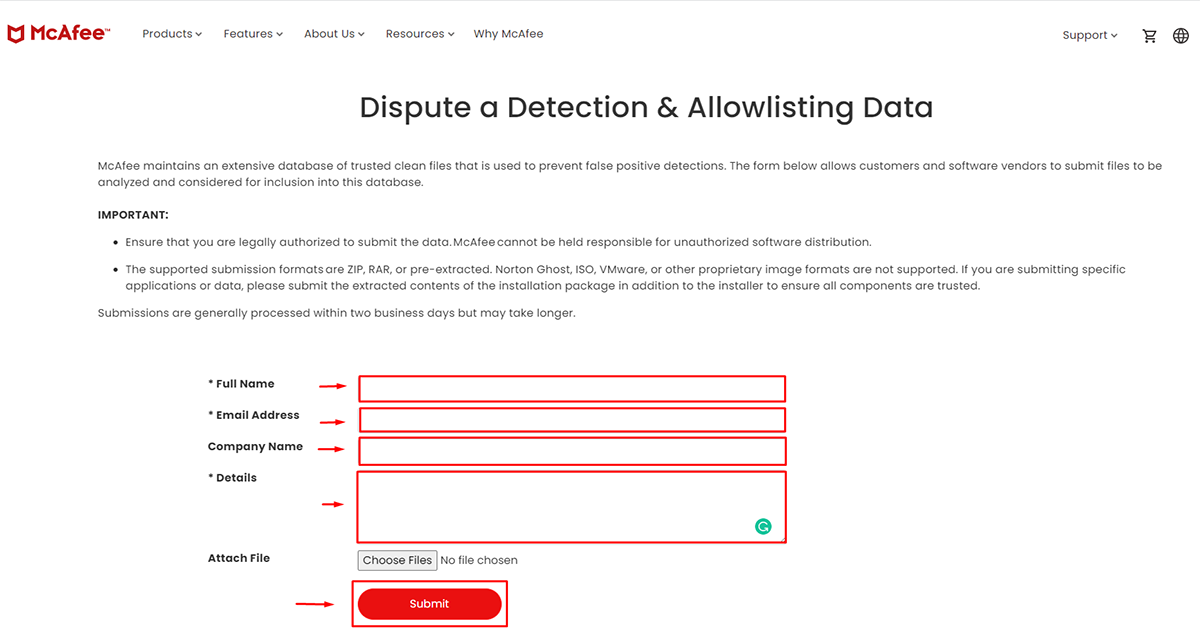

submit the form on Mcafee for WordPress malware removal

Wait for the review

McAfee antivirus will review your request and remove website from McAfee blacklist, if they confirm that your website is no longer infected. Usually, this task can take up to a few hours or a few days to complete. it’s depending on the company. After their review is successful you will receive an email that your site’s verification is complete. The process of removing the blacklist may take some time, and it’s important to be patient and persistent in following up with McAfee antivirus if needed.

Note: Please ensure your website is malware free because It's important to note that submitting a false positive report does not guarantee that the URL will be deemed safe. However, McAfee takes these reports seriously and will investigate the URL to determine whether it poses a threat or not.

Keep your website secure

To avoid future infections, make sure you keep your WordPress website up-to-date with the latest software, themes, and plugins. Also, regularly scan your website for malware using a security plugin like Wordfence or Sucuri. Click on this link to learn how to secure your website with Wordfence or Sucuri. Readme

Pro Tips: If you are not an expert in these tasks, take the help of an expert. Because a wrong move can be dangerous for your website or you can contact our team.Our team will handle your issue with care.

NEED EXPERT HELP TO

McAfee Blacklist removlal

If your website has been blacklisted by McAfee, you may be experiencing a significant drop in traffic and revenue. Don’t panic! With our expert McAfee blacklist removal services, we can help you get your site back up and running in no time.

Domain blacklisted by McAfee? How to remove the blacklist on McAfee Antivirus after removing malware from the WordPress website

Is your site blacklisted by McAfee? Have you ever wondered why after removing malware from your website your visitor get a warning when your visitors try to access your website? Because some anti-virus software vendors have blacklisted your website after it was infected with malware, it is still considered unsafe and your domain is still located on the blacklist.But after removing the malware from your website and site is blacklisted by McAfee , you can contact them and request them to rescan your website, they will review your website and after checking, they will remove that site from their database blacklist.As a result, your website will be marked as non-malicious and your normal rank will be restored. Mcafee antivirus is one such antivirus company.In this tutorial, we will show how to remove the website blocklist from McAfee antivirus. The full McAfee website blacklist removal process.

Verify that the malware is removed

Before requesting removal from the blacklist, make sure that your website is free of any malware. You can use an online scanner like VirusTotal, Sucuri, or IThemes security to check your website for any malware and McAfee domain blacklist check. or You can use a WordPress scanner plugin like Sucuri, Wordfence, or shield security to check your website for any malware. For example, Scan results are given below.Virustotal online scan result.malware search result for WordPress malware protectionWordfence Security plugin scan result.normal malware scan result on wordfence security plugin for WordPress malware removal

Request a review | McAfee request blacklist removal

Once you have confirmed that your website is malware-free, to remove site from McAfee blacklist you can request a review from the McAfee antivirus community. You can do this by visiting the McAfee official website and filling out the online form for malware removal. How to request a review from the McAfee community let’s learn to follow the stepFirst, Go to your google search engine and search “How to submit false positive on the McAfee ” and enter. You can see the link below, click on the link.Google search results for submitting to the report on Mcafee for WordPress malware removalAfter entering the support page you will see the headline “submit the dispute a detection & allow listing data form” click the link below the headline.first page on Mcafee support for WordPress malware protectionThen you will see a form here. Fill out the form with your contact information and a description of your incorrectly flagged URL. Click the “Choose Files” button to select the file that you want to submit. You can also choose to include a screenshot or any other relevant information that may help McAfee in its review process. Once you have filled out the form and attached the necessary files, click the “Submit” button to send the information to McAfee. After submitting the false positive report, you may receive an automated email confirming that McAfee has received your submission.submit the form on Mcafee for WordPress malware removal

Wait for the review

McAfee antivirus will review your request and remove website from McAfee blacklist, if they confirm that your website is no longer infected. Usually, this task can take up to a few hours or a few days to complete. it’s depending on the company. After their review is successful you will receive an email that your site’s verification is complete. The process of removing the blacklist may take some time, and it’s important to be patient and persistent in following up with McAfee antivirus if needed.Note: Please ensure your website is malware free because It’s important to note that submitting a false positive report does not guarantee that the URL will be deemed safe. However, McAfee takes these reports seriously and will investigate the URL to determine whether it poses a threat or not.

Keep your website secure

To avoid future infections, make sure you keep your WordPress website up-to-date with the latest software, themes, and plugins. Also, regularly scan your website for malware using a security plugin like Wordfence or Sucuri. Click on this link to learn how to secure your website with Wordfence or Sucuri. ReadmePro Tips: If you are not an expert in these tasks, take the help of an expert. Because a wrong move can be dangerous for your website or you can contact our team.Our team will handle your issue with care.

NEED EXPERT HELP TO

McAfee Blacklist removlal

If your website has been blacklisted by McAfee, you may be experiencing a significant drop in traffic and revenue. Don’t panic! With our expert McAfee blacklist removal services, we can help you get your site back up and running in no time.

Experiencing a domain blacklisted by McAfee can be quite frustrating, especially when you’ve already taken steps to remove any malware from your WordPress site. It’s important to understand that the process of delisting a domain blacklisted by McAfee requires a bit of patience and a systematic approach. After ensuring your website is clean from threats, the next critical step is to submit a review request to McAfee. This ensures that their team is aware your site no longer poses any security risks and can assess your site’s current safety status.

Before making the request, make sure you have identified and resolved all vulnerabilities that may have led to the initial blacklisting. Conduct a thorough scan of your website to confirm there’s no lingering malware. A domain blacklisted by McAfee often suggests that security concerns remained even after your initial cleanup, so verifying the effectiveness of your security measures is paramount. Ensure that your site’s software is up-to-date, and consider implementing robust security practices such as using strong passwords and secure web hosting.

Once you’re confident that your site is secure, visit McAfee’s site review page to submit a request for removal from the blacklist. Properly filling out this request is vital; include details on what actions you’ve taken to cleanse and secure your website. Documentation of your website’s cleanup efforts can aid in the faster processing of your request. Bear in mind that domain blacklisted by McAfee removal procedures can take some time, as reviews are conducted manually to ensure thoroughness and accuracy.

Maintain communication with McAfee by following up on your request status and providing any additional information they may require. Meanwhile, it’s beneficial to regularly check your website’s security status using various tools and services to remain informed of any changes or potential threats. This proactive approach not only helps in the current situation but can also prevent future incidents of your domain being blacklisted by McAfee or other security services.

It’s worth considering the perspective of your site visitors throughout this process. A domain blacklisted by McAfee can significantly impact visitor trust and traffic to your site. To counteract this, transparency is key. Inform your audience about the steps you’re taking to address the issue and reassure them of your commitment to their security. A clear security policy and a visible effort to maintain a secure website environment can help in regaining visitor trust post-blacklisting.

Finally, ongoing vigilance and improvement of your site’s security posture are essential. Implement security plugins if you haven’t already, perform regular security audits, and stay informed about emerging threats and vulnerabilities. This continuous improvement not only aids in recovering from a blacklist incident but also solidifies your website’s resilience against future threats. By taking these measures, you can effectively manage a domain blacklisted by McAfee and strive to protect your online presence from subsequent challenges.

WhatsApp Logo Chat with Us
